Variables & Goals
Created 4 Mar 2026·Updated 11 Sept 2026
Open Variables in TipLinkThe Variables page holds every value TipLink remembers for you: death counters, running totals, on-air flags, countdown timers and fundraising goals.
No coding needed. You create one, give it a name and a type, then update it by hand or automatically from an alert.
Goals used to have their own page. They are now a type on the Variables page, alongside Text, Number, Yes / No and Countdown. Everything about them still works the same way: the same alert actions update them, and the same overlay widgets display them.
If you have a bookmark to the old Goals page, it now takes you to Variables filtered to your goals.
The Five Types
| Type | What it stores | Example use |
|---|---|---|
| Text | Any words or characters | Current song, last tipper, a custom message |
| Number | A whole or decimal number | Death count, sub count, running total |
| Yes / No | Either yes or no | Is a challenge on? Is a mode active? |
| Countdown | A timer counting down to zero | Boss timer, challenge time limit |
| Goal | Progress towards a target | Charity fundraiser, sub goal |
A variable is a value your alerts can read and change. A goal is progress towards a target you can show on an overlay. The page treats them together because you manage them the same way.
Creating One
- Click Variables in the left sidebar.
- Click + New in the top-right corner.
- Answer What are you making? - a Variable or a Goal.
- Fill in the rest.
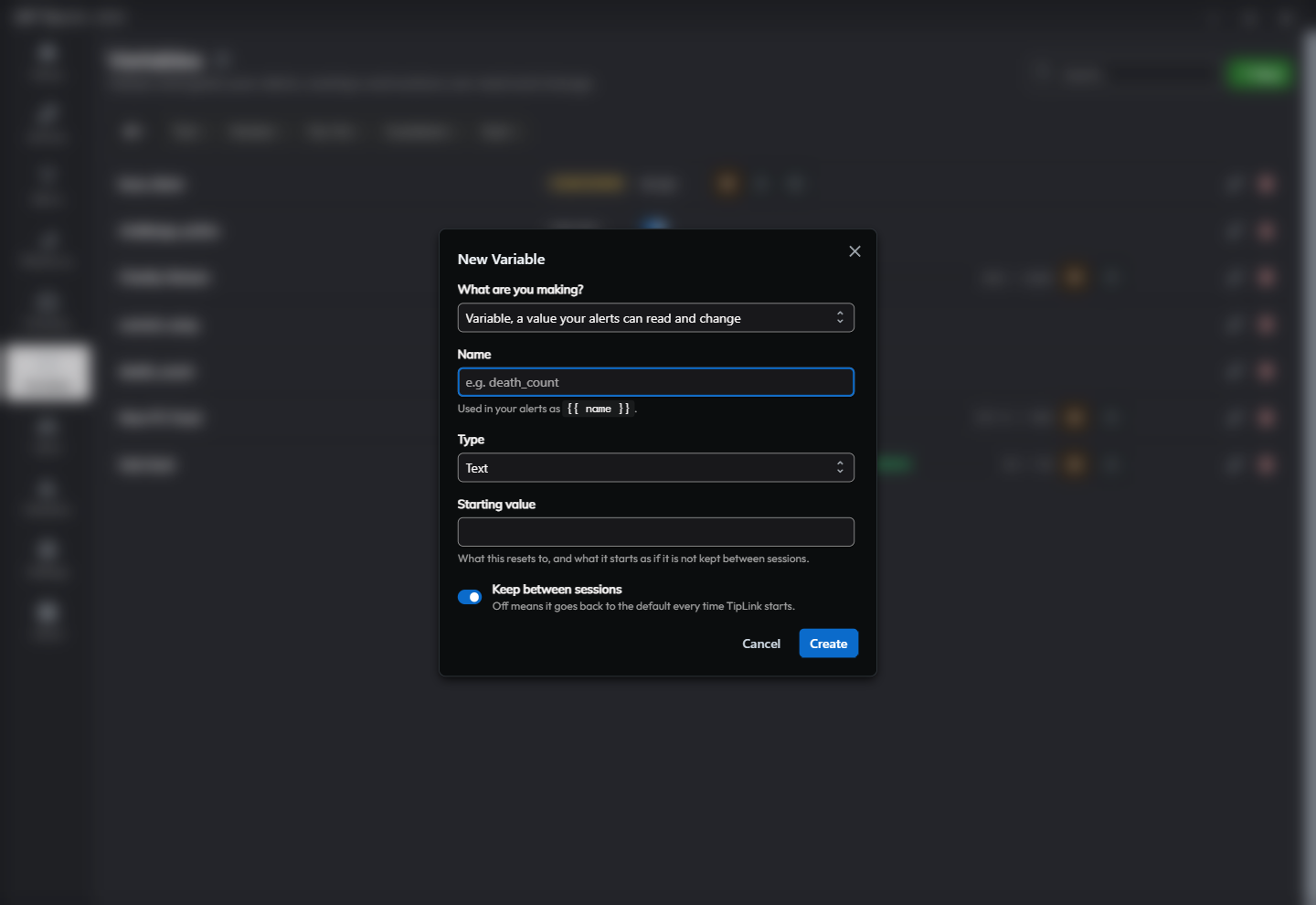
For a variable
| Field | What it is |
|---|---|
| Name | The label you will use to reference it, for example death_count. |
| Type | Text, Number, Yes / No or Countdown. |
| Keep between sessions | When on, TipLink saves the value to disk so it survives a restart. |
For a goal
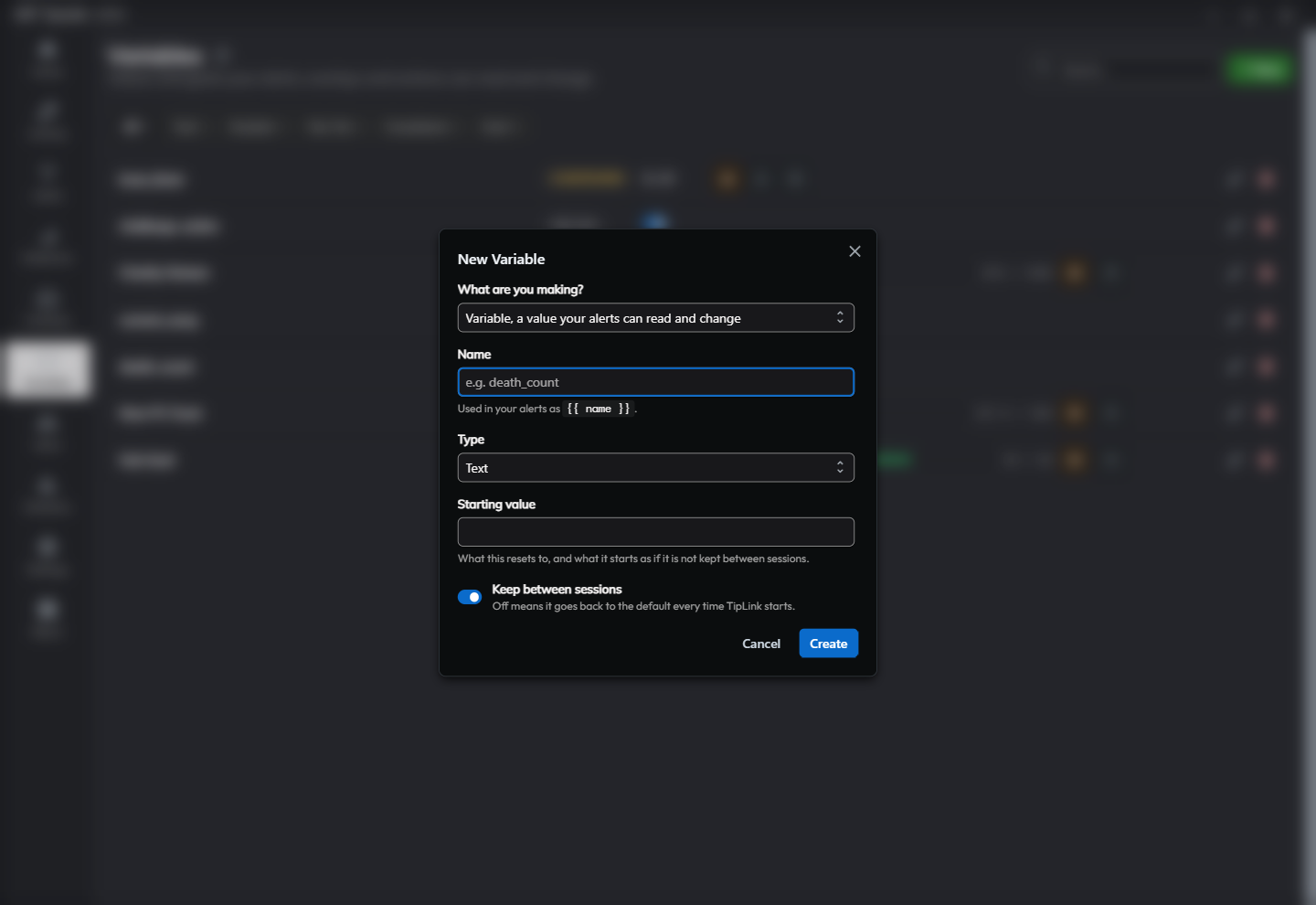
| Field | What it is |
|---|---|
| Name | The goal title, for example Charity Fundraiser. |
| Target | The number you are aiming for. |
| End date (optional) | A deadline, after which the goal stops being active. |
| When the target is reached | Exceed, so progress keeps climbing, or Loop, so progress wraps back to zero. |
Finding Things
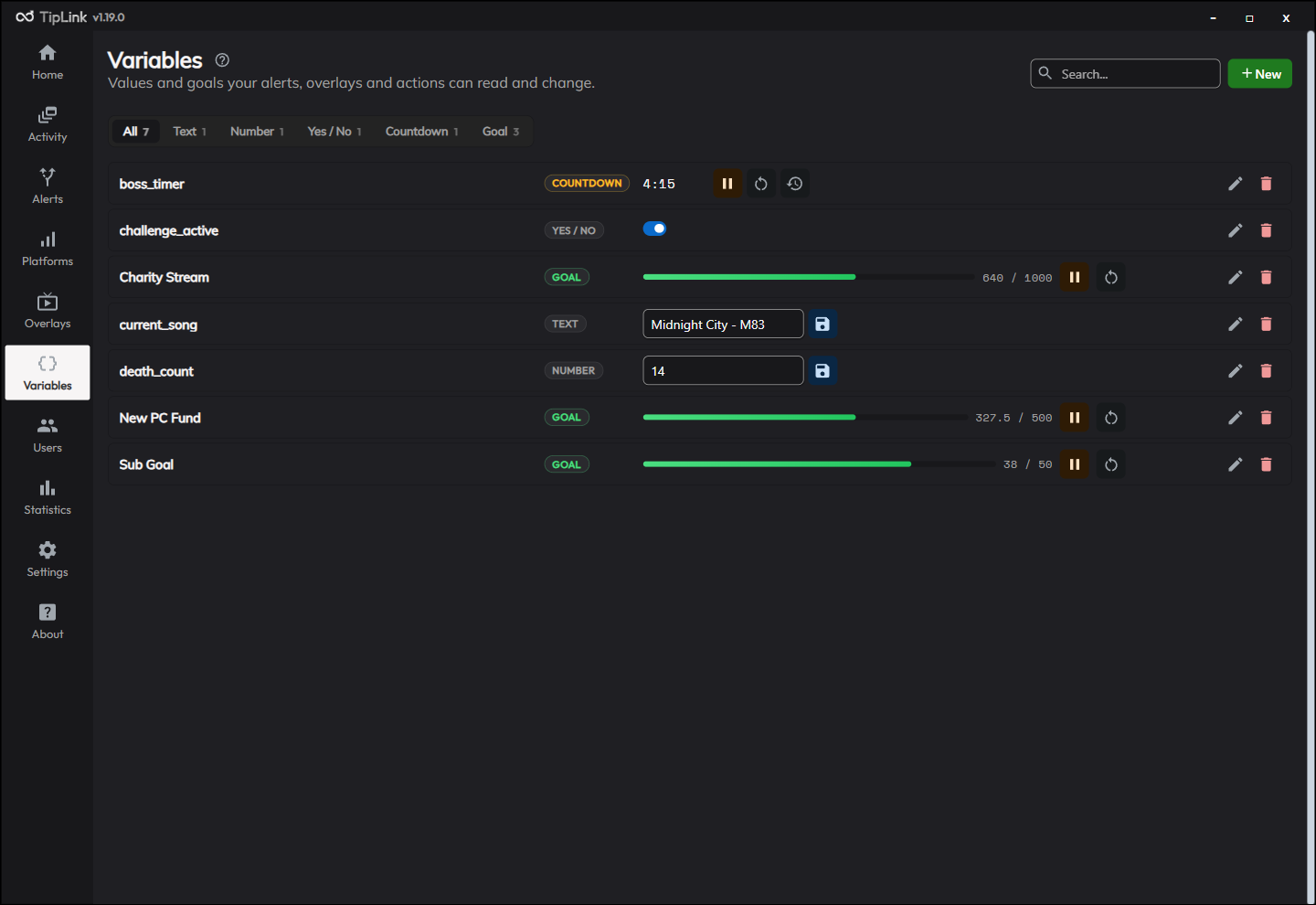
Once you have more than a handful, use the controls at the top of the page:
- Search by name.
- Filter by type: All, Text, Number, Yes / No, Countdown or Goal.
Each entry sits on a single compact row showing its current value.
Changing One
Click a row to open it. You can change its name, type, default value and whether it is kept between sessions, without deleting and recreating it.
Three things TipLink does to keep you out of trouble:
Renaming lists the alerts that use it. Because alerts refer to a variable by name, renaming one would normally break them. TipLink shows you every alert that mentions it, including disabled ones, and offers to update them for you.
Changing the type shows you the result first. You see exactly what the current value will become before you save, so you are not guessing whether 12.5 survives becoming Text.
Deleting warns you first if any alert uses it, again including alerts that are switched off.
You do not need the editor to change a value. On the row itself, type a new number or text and press Enter, flip a Yes / No, or use the countdown controls.
Countdown Timers
The Countdown type ticks down from a set number of seconds.
Controls
| Button | Action |
|---|---|
| Start | Begin counting down |
| Pause | Freeze the timer |
| Resume | Continue a paused timer |
| Reset | Return to the starting value |
A timer that has reached zero offers Play rather than Pause, so you can restart it in one click.
Timer history
Each countdown keeps a history of what happened to it: start, pause, resume, stop, reset, and time added or removed. Open it from the row, and close it by clicking away or pressing Escape.
The number of entries kept per timer is capped by Countdown Timer History Limit in Settings, default 500, so a long stream cannot grow it without limit.
Countdown timers are saved to disk whatever the "Keep between sessions" setting says. Their state, running or paused and the time remaining, survives a restart.
Showing One on Your Stream
Text, Number and Yes / No
Use a Text widget on an overlay canvas.
-
Go to Overlays, open a canvas and click Open Widget Editor.
-
Add a Text widget and click its gear icon.
-
In the Text field, use the Insert button to drop in a variable:
Deaths today: {{ var.death_count }}
The widget updates live as the value changes.
Goals
Goals have two dedicated widgets:
| Widget | What it shows |
|---|---|
| Stream Goal | One goal as a progress bar card. |
| Goals (Progression) | Several goals at once in a stacked panel. |
Add either one, then use its gear icon to choose which goal or goals it shows.
You can also drop a goal into any text using {{ goal.Title }} for "current/target", or {{ goal.Title.current }} for just the number. Other fields are target, title, active, remaining and percent.
See Stream Overlays for every appearance option.
Updating From an Alert
Variables
Add the Global Variable action and choose an operation:
| Operation | What it does | Works with |
|---|---|---|
| Set Value | Replaces the value | All types |
| Add (Number) | Increases it | Number |
| Subtract (Number) | Decreases it | Number |
| Multiply (Number) | Multiplies it | Number |
| Divide (Number) | Divides it | Number |
| Append (String) | Adds text to the end | Text |
| Toggle (Boolean) | Flips yes to no and back | Yes / No |
See Global Variable.
Countdown timers
Countdowns use their own action, Countdown Timer, with Start, Pause, Resume, Stop, Add Time, Remove Time and Reset. See Countdown Timer.
Goals
Goals use Goal: Increment, which adds an amount you choose. Use {{ value }} to add the exact tip amount. See Goal: Increment.
Goal progress updates on screen as your alerts add to it, rather than only after you leave and return to the page.
Using Values in Other Actions
Insert a variable into any text field:
{{ username }} made me die again! Total deaths: {{ var.death_count }}
Click the {{ }} button next to any text field. Your variables appear under Global Variables, so you never have to remember the exact name.
See Using Event Data in Actions for the full guide.
Triggering an Alert From a Variable
An alert can fire when a value changes.
- Create an Alert.
- Under Platforms, choose TipLink Variables.
- Under Valid Events, choose Variable Value Changed.
- Choose which variables to watch, or leave empty for all of them.
- Optionally add a condition:
| Condition | What it checks |
|---|---|
| Number Condition | The new value falls within a minimum and maximum. |
| Text Condition | The new value contains your text. |
| Boolean Condition | The new value is yes or no. |
If an alert is triggered by a variable changing and one of its own actions changes that same variable, it will trigger itself repeatedly. Point the action at a different variable, or add a condition so it can only match once.
Countdowns have their own trigger: choose TipLink Countdowns and Countdown Completed.
Goals have two: Goal Completed and Goal Milestone Reached. See Stream Goals.
Tips
- Names are case-sensitive.
death_countandDeath_Countare different. - Use Keep between sessions for values that should carry over, and leave it off for anything that should reset each stream.
- To clear a variable at the start of a stream, use Set Value with your starting value. Only countdown timers have a dedicated Reset to Initial Value.
- Variables and goals are included in every full backup as of v1.19.0.