Alerts
Created 25 Nov 2025·Updated 11 Sept 2026
Open Alerts in TipLinkWhat is an Alert?
Alerts watch for specific conditions in events, like when a donation amount matches what you set, and automatically trigger a set of actions in response.
Think of an Alert as a rule: "When this happens, do these things."
How Does It Work?
- An Event arrives (e.g. someone tips $10 on Twitch).
- TipLink checks your alerts top-to-bottom.
- The first matching alert runs all of its Actions (e.g. show an overlay, post to Discord).
- The event is marked as complete.
By default only one alert fires per event. If two alerts both match, the one higher up your list wins and the other is skipped.
Firing more than one alert on the same event
If you want a second alert to run as well, open it and turn on Always Trigger. That alert then fires alongside the winning alert instead of being skipped.
You can turn Always Trigger on for as many alerts as you like. Each one is checked separately, so an alert only joins in when its own conditions match.
To choose how multiple alerts run together, go to Settings and find Multi-Alert Execution Mode under App Preferences:
| Mode | What it does |
|---|---|
| Sequential | Alerts run one at a time, in list order. This is the default. |
| Simultaneous | All matching alerts run at the same time. |
Keep it on Sequential if your alerts control a device, or if a later alert depends on something an earlier one did. Simultaneous is faster but the order is not guaranteed.
Creating an Alert
-
Go to the Alerts page in the sidebar.
-
Click Create New Alert in the top-right corner.
-
Enter a Title for your alert (e.g. "$5 Donation").
-
Under Platforms, select which platform(s) this alert should apply to.
- Example: select Twitch if you only want this alert to fire for Twitch events.
-
Under each selected platform, choose the account(s) this alert should match.
-
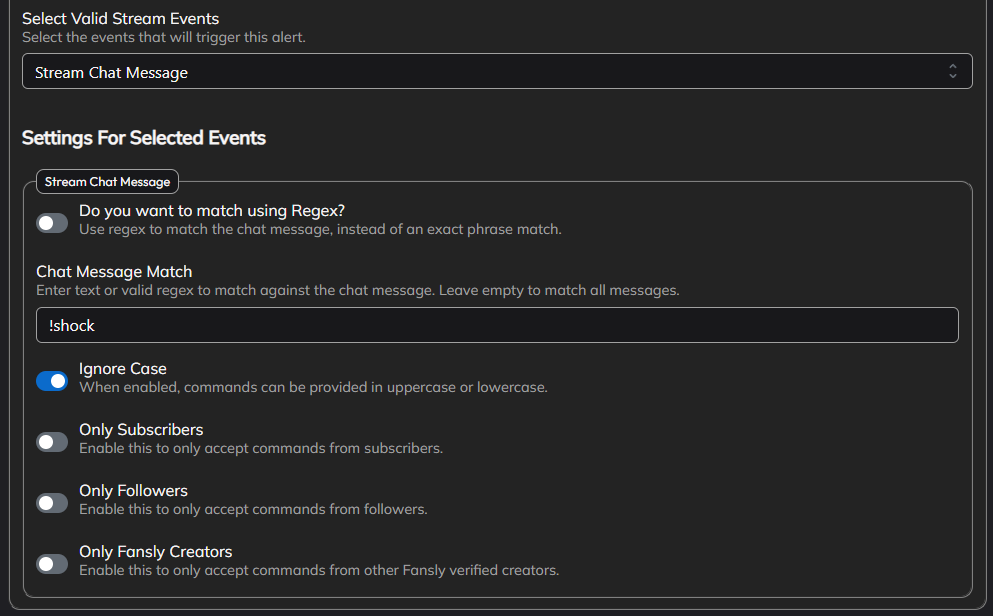
Under Valid Events, select the event type(s) that trigger this alert (e.g. Donation / Tip).
- Some event types have additional settings (like a minimum dollar amount). These appear below under Settings For Selected Events.
-
Scroll down to the Actions section and click Add Action.
-
Select an action type (e.g. Stream Overlay, Discord Webhook, PiShock Device).
-
Configure the action settings.
-
Click Save to save your alert.
You can add as many actions as you like to a single alert. They all run together when the alert fires.
Managing Alerts
Enable / Disable
Use the toggle switch next to each alert to enable or disable it without deleting it. Disabled alerts are skipped during event matching.
Reordering Alerts
Drag alerts up and down using the drag handle (⠿) on the left side. Order matters - the first matching alert wins.
Duplicating an Alert
Click the ⋮ (more options) menu on an alert and select Duplicate to create a copy.
Testing an Alert
Click the ⋮ menu and select Test Actions to fire the alert's actions immediately, without needing a real event.
When an Alert Has Problems
TipLink checks each alert for anything that would stop it, or one of its actions, from working: an account that has since been deleted, a required field left empty, an action that is switched off.
On the Alerts page, a problem shows as a label on the alert's row:
| Label | What it means |
|---|---|
| Won't run | The alert cannot fire at all as it is set up. |
| 2 issues | The alert can fire, but something needs attention. |
Click the label to open the alert with the details already showing.
Inside the alert editor, the Issues panel lists every problem found. Each one has a Take me there button that opens the action it belongs to and highlights the field at fault.
"Won't run" is the same state the Ignored label used to describe, said in terms of what actually happens. The editor's old "finish adding platforms" and "finish configuring actions" notices are gone too; the Issues panel covers both.
No label means nothing was found wrong. An alert that has simply not fired yet looks exactly as it always did.
Filtering the List
The filter button at the top of the Alerts page narrows what you see. The menu stays open while you tick things, so you can set several at once.
You can filter by:
- Alert Set, if you use Alert Sets
- Not in any set, to find alerts you never filed
- Has issues, to bring up everything needing attention
Each option shows how many alerts match before you pick it.
Editing Many Alerts at Once
If you need to change the same setting across a lot of alerts, use Mass Edit Actions at the top of the Alerts page. It works in two steps:
- Select Alerts - tick the alerts you want to change. There is a search box and a Select All option.
- Configure Overrides - pick one action type (for example PiShock), then tick each field you want to change and set its new value.
Only the fields you tick are changed. Everything else on those alerts is left alone.
Two things to be aware of:
- If a selected alert has no action of the type you picked, TipLink adds one with default values.
- For fields that hold a list (such as selected devices) you can choose Replace, Add or Remove.
Mass Edit changes many alerts in one go and cannot be undone. Export a backup from Settings before a large edit. See Exporting & Importing Data.
Next Steps
Choose exactly what makes an alert fire, and filter on amount, role or text.
Actions OverviewEvery action TipLink can run, grouped the same way as the app.
Using Event DataPut the viewer's name, tip amount or points balance into any message.
Cooldowns & Rate LimitingStop an alert firing too often during raids and gift bombs.
Alert SetsGroup alerts and switch whole groups on and off in one click.
Event Testing ToolBuild a fake event and check exactly which condition passes or fails.