Twitch (Your Channel)
Created 31 Dec 2025·Updated 31 Jul 2026
Open Platforms in TipLinkSet-up Instructions
-
Open TipLink, and navigate to the "Platforms" page using the sidebar.
-
Click Add an Account, then choose Twitch (Your Channel).

-
A popup will now open in your web browser. Follow the instructions on-screen to authorize your Twitch account.
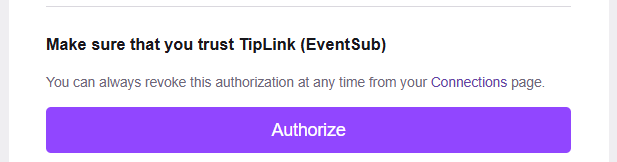
-
After clicking "Authorize", please wait until you see a large tick icon, and a message indicating it's safe to close the tab.
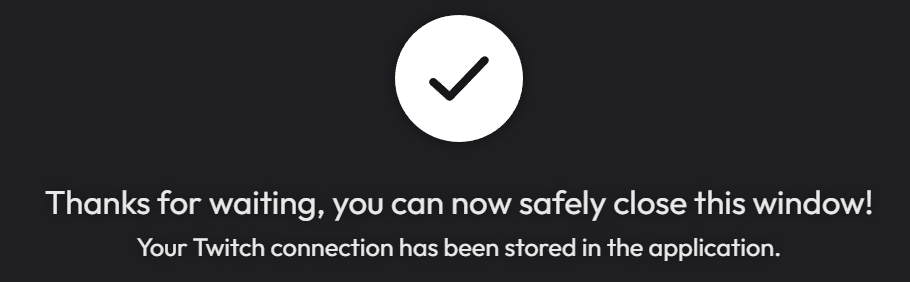
Twitch is now connected to TipLink!
Managing Your Account
Here's how to manage your account connection with Twitch within TipLink.
-
Open TipLink, and navigate to the "Platforms" page using the sidebar.
-
Find your account in the list, and click the small person icon containing a gear.
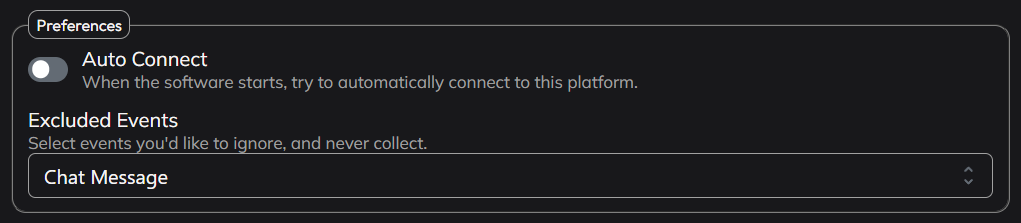
This is the configuration window for your account connection, where you can manage tools like:
- Auto Connect
Enable this to automatically connect this account when TipLink starts. - Excluded Events
If you want to ensure certain events are never recorded, select them from the dropdown list provided. Chat Messages are added to the exclusion list by default. - Delete Account
This button will completely remove your account connection with this platform.
Connection Instructions
-
Open TipLink.
-
On the Home or Platforms page, click "Connect" next to the account you'd like to connect with.
-
TipLink will now try to connect with Twitch.
- If the connection is successful, you'll see the button text change to "Disconnect", and the button will turn red.
- If the connection failed, the button will remain green, and the text will read "Connect".
Removal Instructions
To remove your connection between TipLink and Twitch, please follow the instructions below.
Warning
Disconnecting TipLink will break existing connections to Twitch, and you will have to re-connect to use TipLink with Twitch in the future.
-
Log-in to Twitch, and navigate to https://www.twitch.tv/settings/connections
-
Scroll down on the page to "Other Connections".
-
Locate the item labeled "TipLink (EventSub)", then click "Disconnect" to the right.
-
Open TipLink, and navigate to the "Platforms" page using the sidebar.
-
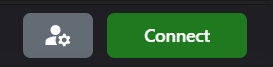
Find your Twitch account in the list, and click the small person icon containing a gear.
-
Click "Delete Account" top-right.
-
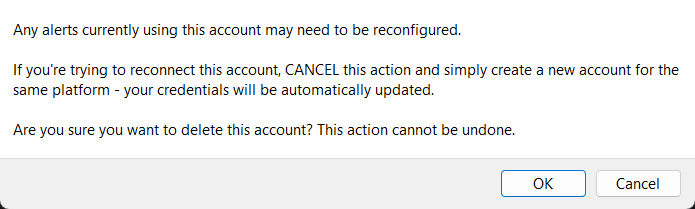
You'll then be asked to confirm if you really want to do this.
Supported Events
TipLink can receive the following event types from your Twitch channel. You can create Alerts that trigger on any of these.
Channel Events (EventSub)
| Event | Description |
|---|---|
| Subscription | A viewer subscribes to your channel (any tier) |
| Gift Subscription | A viewer gifts one or more subscriptions |
| Re-subscription | A viewer's subscription renews |
| Bits / Cheer | A viewer cheers with Bits |
| Channel Point Redemption | A viewer redeems a custom channel point reward |
| Follow | A viewer follows your channel |
| Raid | Another channel raids yours |
| Hype Train Begin | A Hype Train starts on your channel |
| Hype Train Progress | A Hype Train level advances |
| Hype Train End | A Hype Train ends |
| Poll Begin | A channel poll starts |
| Poll End | A channel poll ends |
| Prediction Begin | A prediction starts |
| Prediction End | A prediction resolves |
| Stream Online | Your stream goes live |
| Stream Offline | Your stream ends |
Chat Events
| Event | Description |
|---|---|
| Chat Message | A viewer sends a chat message |
Chat Messages are added to the Excluded Events list by default because of the high volume of messages on most streams. You can re-enable them in the account settings if you want to trigger alerts on chat activity.
Hype Train Event Data
| Field | Event | Description |
|---|---|---|
level | Progress, End | The current Hype Train level reached |
progress | Progress | The contribution progress within the current level |
goal | Progress | The contribution goal needed to reach the next level |