Settings
Created 4 Mar 2026·Updated 26 Sept 2026
Open Settings in TipLinkThe Settings page holds TipLink's global options. Open it with the gear icon (⚙️) in the left sidebar.
Settings save automatically as you change them. A line at the top of the page shows when they last saved.
There is a search box at the top. Type any part of a setting's name to filter the page down, which is quicker than scrolling if you know what you are after.
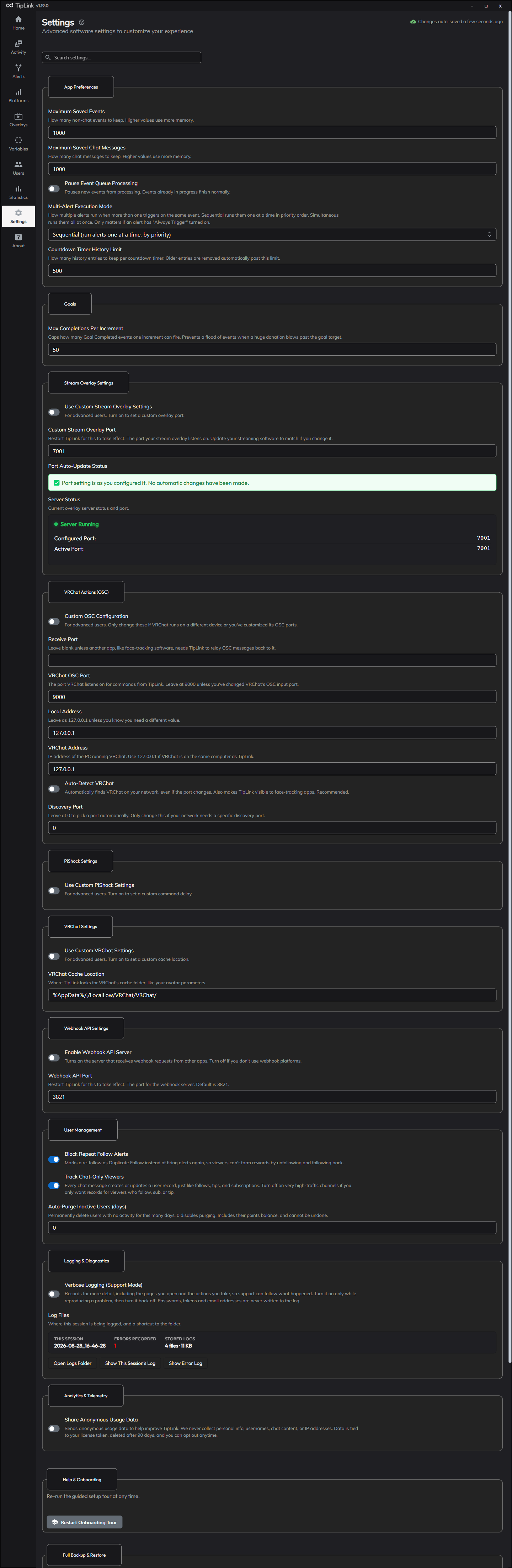
Most people never need to change anything here. The sections marked For advanced users are safe to leave alone.
App Preferences
| Setting | What it does | Default |
|---|---|---|
| Maximum Saved Events | How many non-chat events TipLink keeps in its history. Higher values use more memory. | 1000 |
| Maximum Saved Chat Messages | How many chat messages TipLink keeps. Higher values use more memory. | 1000 |
| Pause Event Queue Processing | Stops new events being processed. Events already running finish normally. Events still arrive and are recorded, they just do not fire any alerts until you unpause. | Off |
| Multi-Alert Execution Mode | How several alerts run when more than one fires on the same event. Sequential runs them one at a time in priority order. Simultaneous runs them all at once. Only matters when an alert has Always Trigger turned on. | Sequential |
| Countdown Timer History Limit | How many history entries to keep per countdown timer. Older entries are removed past this limit. | 500 |
Pause Event Queue Processing is the fastest way to stop everything, including device actions, without disconnecting your platforms.
Goals
| Setting | What it does | Default |
|---|---|---|
| Max Completions Per Increment | Caps how many Goal Completed events a single increment can fire. Stops a huge donation flooding you with events when a goal is set to loop. | 50 |
Goals themselves are created on the Variables page. See Stream Goals.
Stream Overlay Settings
For advanced users.
| Setting | What it does | Default |
|---|---|---|
| Use Custom Stream Overlay Settings | Turn on to choose your own overlay port. | On |
| Custom Stream Overlay Port | The port your stream overlay listens on. If you change it, update the browser source addresses in your streaming software to match. Restart TipLink for the change to take effect. | 7001 |
| Port Auto-Update Status | Shows whether TipLink has moved the port automatically because something else was using it. | - |
| Server Status | Shows whether the overlay server is running, and on which port. | - |
VRChat Actions (OSC)
For advanced users. Only change these if VRChat runs on a different PC, or you have customised VRChat's OSC ports.
| Setting | What it does | Default |
|---|---|---|
| Custom OSC Configuration | Turn on to reveal the options below. | On |
| Receive Port | Leave blank unless another app, such as face-tracking software, needs TipLink to pass OSC messages back to it. | Blank |
| VRChat OSC Port | The port VRChat listens on for commands from TipLink. Leave at 9000 unless you changed VRChat's OSC input port. | 9000 |
| Local Address | Leave as 127.0.0.1 unless you know you need something else. | 127.0.0.1 |
| VRChat Address | The IP address of the PC running VRChat. Use 127.0.0.1 if VRChat is on the same computer as TipLink. | 127.0.0.1 |
| Auto-Detect VRChat | Finds VRChat on your network automatically, even if its port changes. Also makes TipLink visible to face-tracking apps. Recommended. | On |
| Discovery Port | Leave at 0 to pick a port automatically. Only change this if your network needs a specific discovery port. | 0 |
PiShock Settings
For advanced users.
| Setting | What it does | Default |
|---|---|---|
| Use Custom PiShock Settings | Turn on to set a custom command delay. | Off |
| PiShock Actions Delay Buffer (seconds) | How long to wait between PiShock commands. Increase it if commands are not sending reliably. | 1 |
VRChat Settings
For advanced users.
| Setting | What it does | Default |
|---|---|---|
| Use Custom VRChat Settings | Turn on to set a custom cache location. | On |
| VRChat Cache Location | Where TipLink looks for VRChat's cache folder, which is how it finds your avatar parameters. | %AppData%/./LocalLow/VRChat/VRChat/ |
Webhook API Settings
TipLink includes a built-in webhook server so other apps can send events into TipLink.
| Setting | What it does | Default |
|---|---|---|
| Enable Webhook API Server | Turns the server on or off. Must be on before any webhook platform can receive events. | On |
| Webhook API Port | The port the webhook server listens on. Restart TipLink for a change to take effect. | 3821 |
Turning the server on is only half the job. You also need to add a Webhook platform on the Platforms page. See Using Webhooks.
Control API
Lets other apps on this computer drive TipLink: trigger an alert, connect or disconnect a platform, show or hide a widget, or pause the queue.
The main thing that uses it is the TipLink Stream Deck plugin, which needs nothing here beyond Enable Control API switched on.
| Setting | What it does | Default |
|---|---|---|
| Enable Control API | Turns it on. Each app has to ask your permission before it can do anything. | Off |
| Control API Token | For scripts that cannot show a prompt of their own. It is shared, so changing it cuts off everything using it at once. Clear it and restart TipLink to issue a new one. | Blank |
| Allow sending test events | On lets a connected app send test events. Off limits apps to triggering alerts you already have. | On |
| Connection | The address apps connect to, ws://127.0.0.1:<Webhook API Port>/control. | - |
The Control API runs on the same port as the Webhook API Server above. Changing that port changes this address too.
The address is bound to 127.0.0.1, so only apps on this computer can connect. Changing the enable toggle or the token restarts the shared server.
Connected Apps
Apps that asked and were approved are listed here. Each one can be revoked, which drops its connection straight away.
An app that connects with the token instead of asking has no identity of its own, so it cannot be revoked individually. Rotating the token is the only way to cut it off, and that cuts off everything else using the token at the same time.
User Management
These control how TipLink tracks your viewers.
| Setting | What it does | Default |
|---|---|---|
| Block Repeat Follow Alerts | Marks a repeat follow as Duplicate Follow instead of firing your follow alerts again, so viewers cannot farm rewards by unfollowing and following back. | On |
| Track Chat-Only Viewers | Creates or updates a viewer record for every chat message, the same as follows, tips and subscriptions do. Turn off on very busy channels if you only want records for viewers who follow, sub or tip. | On |
| Auto-Purge Inactive Users (days) | Permanently deletes viewers with no activity for this many days, including their points balance. Set to 0 to keep everyone forever. | 0 |
Auto-purge deletes viewer records and their points for good. If you run seasonal points resets, export the Users CSV first. See Points & Viewers.
Tracking chat-only viewers only works if Chat Message is not in that account's Excluded Events list. Chat is excluded by default, so check the account's settings on the Platforms page first.
Points amounts are set separately, from the Points Settings button on the Users page.
Statistics
| Setting | What it does | Default |
|---|---|---|
| Count Test & Replayed Events | Includes events you sent with Send Test Event, replayed from the Activity log, or fired by a platform's own test button in your Statistics and on the Home page tiles. Off by default, so testing your alerts does not inflate your real numbers. | Off |
TipLink pre-calculates your daily totals, so switching this recalculates the statistics you already have. It can take a moment on a large history.
Logging & Diagnostics
TipLink keeps a log of each session. This section tells you where those logs are and how to hand them to support.
| Setting | What it does | Default |
|---|---|---|
| Verbose Logging (Support Mode) | Records far more detail, including the pages you open and the actions you take, so support can follow exactly what happened. Turn it on only while reproducing a problem, then turn it back off. | Off |
| Log Files | Shows which log this session is writing, how many errors have been recorded and how much space your logs use, with buttons to open the logs folder or jump straight to this session's log or error log. | - |
What gets logged
- Each session writes a main log and a separate error log, sharing the same date and time in their filenames.
- Every log opens with your TipLink version, Windows version, hardware and folder locations, which is what support would otherwise have to ask for.
- Day-to-day logs record connections, account changes, startup and shutdown, and anything that went wrong. The fine detail only appears when Verbose Logging is on.
- TipLink keeps the last 10 sessions, so a session's main log and error log are always kept together.
Account details are never logged when connecting or creating an account, only the account identifier. Values stored against names like token, auth, session, passphrase or private key are stripped as well.
Turn on Verbose Logging, reproduce the problem, then use the buttons in Log Files to open this session's log. Turn Verbose Logging back off afterwards, as it is noisy.
Help & Onboarding
Restart Onboarding Tour runs the first-time setup wizard again. Useful if you skipped it, or you want to add one of its ready-made alert templates later.
Full Backup & Restore
Creates a complete portable copy of your TipLink data, including alerts, platform accounts, settings, events, overlays, viewers and points.
| Button | What it does |
|---|---|
| Export Full Backup | Saves everything to a .json file. You can password-protect it. |
| Import Full Backup | Replaces all your current data with a backup file. |
Import overwrites all existing data. Export first if you want to keep anything you have now.
Full guide: Exporting & Importing Data.
Danger Zone: Storage Controls
These permanently delete data. Click Unlock Storage Controls first, and each one asks you to confirm.
| Button | What it does |
|---|---|
| Clear Entire App Memory | Deletes everything: settings, alerts, accounts, the lot. You will need to enter your licence again. |
| Delete All Received Events | Deletes your stored event history, not including chat messages. |
| Skip All Pending Events | Marks every queued or cooldown-delayed event as Skipped. They stay in your history but never run. Events already being processed are not affected. |
| Delete All System Activity Logs | Deletes TipLink's internal activity logs. |
| Delete All Stored Chat Messages | Deletes every stored chat message. |
| Clear All Users (Points) | Deletes every viewer record, including points balances, name histories and follow records. Points Redemptions are not affected. Viewers are recreated automatically as new events arrive. |
Export a full backup before using anything in this section.
Click Lock Storage Controls when you are finished, so nothing is clicked by accident.
The number of stored events and chat messages is shown here, next to the controls that delete them. It used to live on the Activity page.
The About Page
Your licence and version information live on the About screen, not in Settings.
| What you will find | Detail |
|---|---|
| Licence status | Which licence is active and its device binding. |
| Purchased from | The store you bought it from, shown by name. |
| Activated on | The date this licence was activated. Licences activated before v1.19.0 show Unknown until they are next activated. |
| Change License | Removes the licence from this installation and restarts TipLink so you can activate a different one. |
| Software Updates | The version you are running, an update check, and when TipLink last checked. |
| System Messages | Notices from TipLink itself. One line each, with the age on the right and the exact date and time on hover. These moved here from the Home page. |
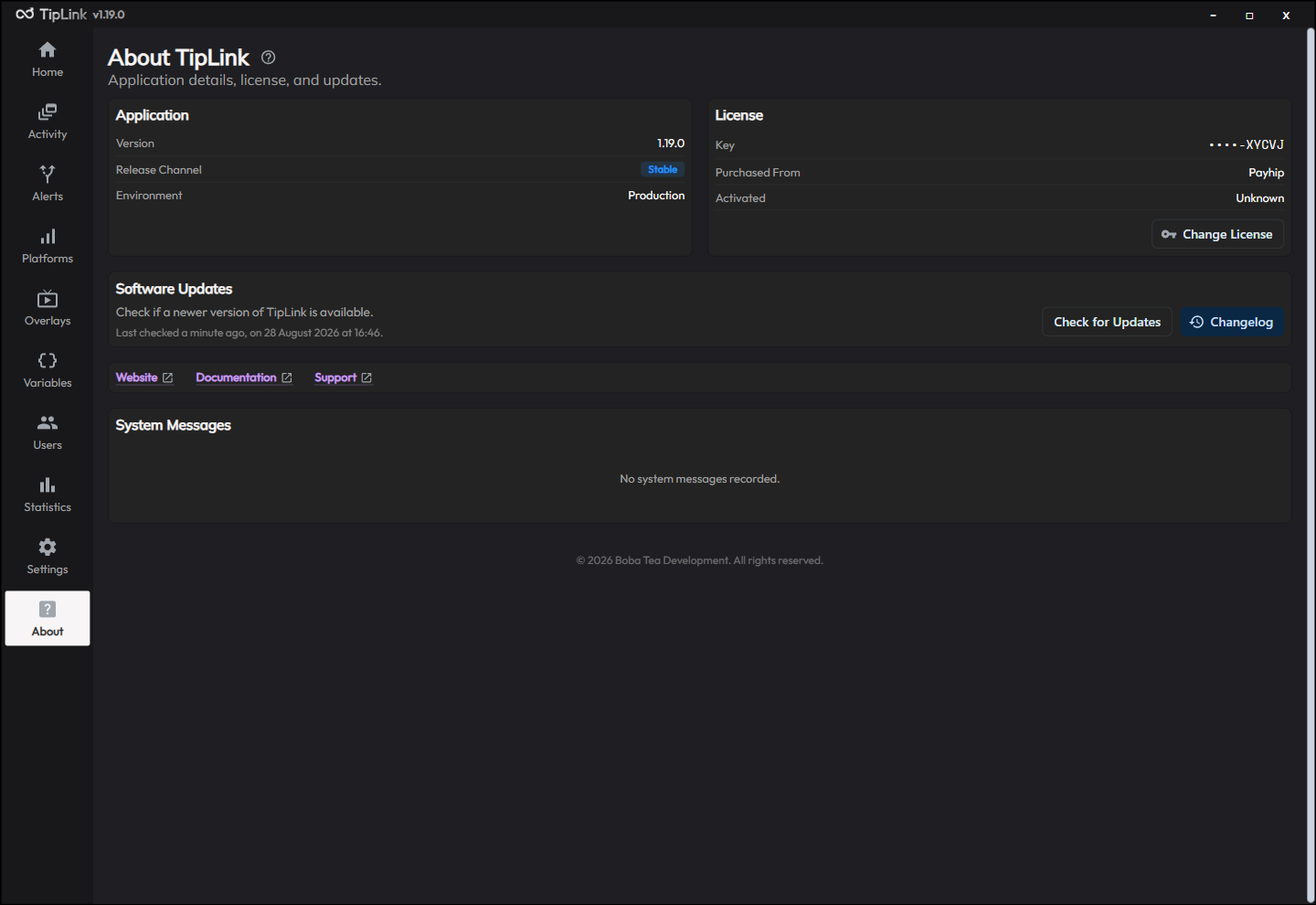
Change License only removes the licence. Your alerts, platforms, overlays, variables and settings all stay exactly as they are.