Redemptions
Created 31 Jul 2026·Updated 11 Sept 2026
A redemption is something viewers can buy with their points by typing a chat command. When someone redeems, TipLink deducts the cost and fires an event you can hang any alert off.
This gives you channel-points-style rewards on every platform, including ones that have no reward system of their own.
Creating a Redemption
-
Open the Users page in the sidebar.
-
Click the Redemptions tab at the top.
-
Click Add Redemption.
-
Fill in the details:
Field What it is Redemption Name A friendly label, for example PiShock. This is what shows in your activity feed and in alerts. Chat Command Exactly what viewers type, for example !shock.Points Cost How many points are taken each time. Minimum 1. -
Set the cooldowns if you want them:
Field What it is Global Cooldown The shortest gap between any two uses, by anyone. Per-Viewer Cooldown The shortest gap before the same person can redeem again. Leave either at
0for no limit. You can enter the value in seconds, minutes or hours. -
Click Create Redemption.
How a Redemption Fires
When a chat message arrives, TipLink checks it against your redemption commands. All of these must be true for it to fire:
- The redemption is set to Active.
- The message matches the command exactly.
- The viewer has enough points.
- Neither cooldown is running.
If any of these fails, nothing happens and the viewer is not charged.
!shock matches. !shock please does not. Capital letters and surrounding spaces are ignored, but anything else in the message stops the match.
If you want to accept extra words, use a normal chat message alert with Match Contains instead, and deduct points with the User: Modify Points action.
If someone cannot afford a redemption, TipLink stays silent. If you want to tell them, make a separate alert on the same chat command that replies with their balance. See Using Points in Alerts.
Chat messages must be recorded for redemptions to work at all. Check that Chat Message is not in Excluded Events for that account on the Platforms page.
As of v1.18.0 redemption commands also work in TikTok chat and in Twitch gigantified emote messages, not just standard chat messages.
Managing Redemptions
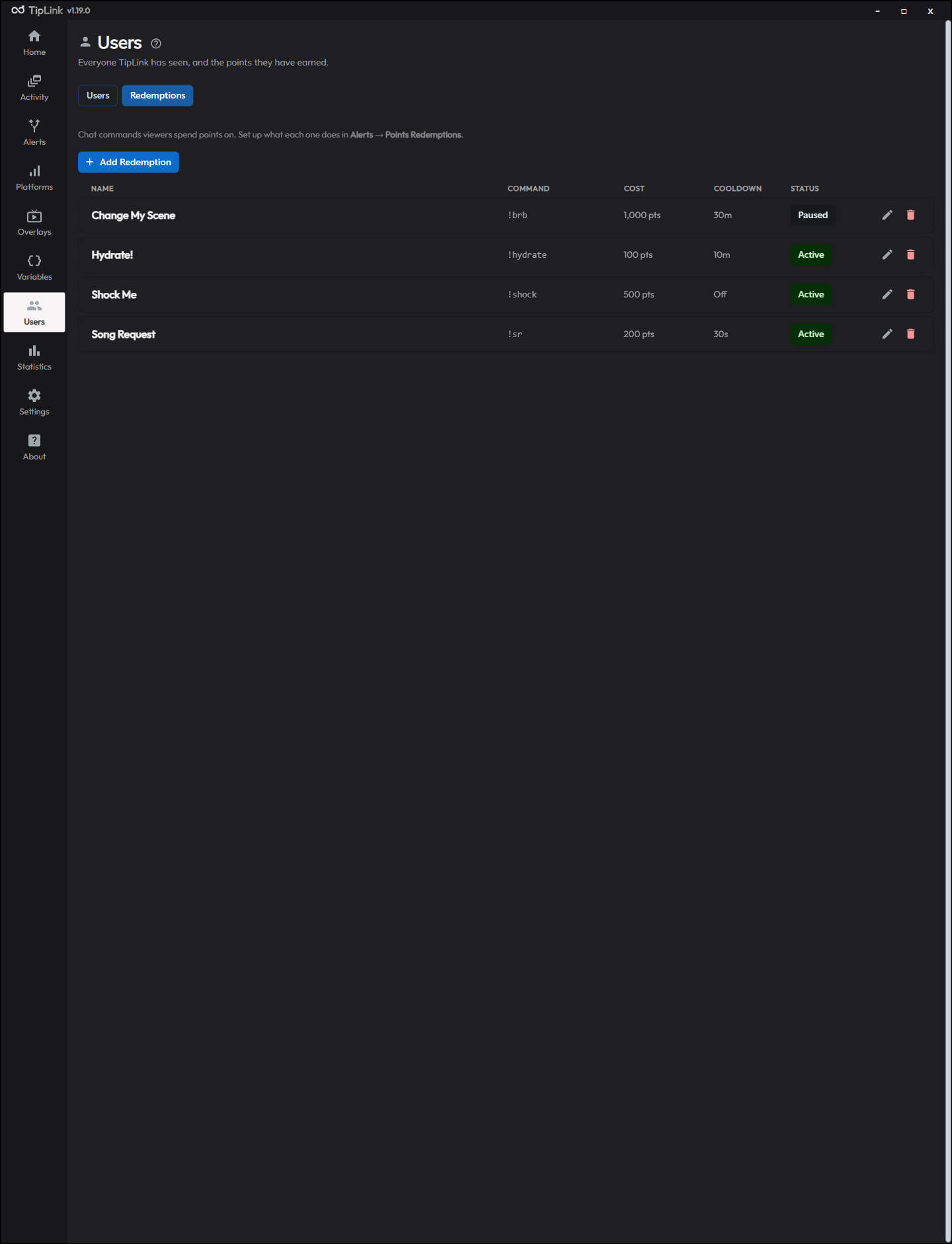
On the Redemptions tab, each row shows the name, command, cost and global cooldown.
| Action | How |
|---|---|
| Pause or resume | Click the Active or Paused button on the row. |
| Edit | Click the row, or the pencil icon. |
| Delete | Click the bin icon and confirm. |
Pausing is the quick way to switch a reward off for one stream without losing its settings.
Editing a redemption never changes anyone's existing balance.
Reacting to a Redemption
Deducting points is only half the job. To make something actually happen, create an alert:
-
Go to Alerts and create a new alert.
-
Under Platforms, choose Points Redemptions.
-
Under Valid Events, choose Viewer Redeemed Points.
-
Set the conditions:
Condition What it does Which Redemption? Pick one specific redemption, or leave it as Any Redemption to catch them all. Minimum Points Cost Only fire for redemptions costing at least this much. Set to 0for any.Viewer's Chat Platform Only fire when the viewer redeemed from a particular platform. Leave as Any Platform for all of them. -
Add your actions, for example a Stream Overlay alert or a PiShock action.
-
Save.
What you can use in the actions
| Placeholder | What it contains |
|---|---|
{{ redemptionName }} | The name of the redemption |
{{ command }} | The command that was typed |
{{ cost }} | How many points it cost |
{{ displayname }} | The viewer's name |
{{ newPointBalance }} | Their balance after the deduction |
{{ originPlatform }} | Which platform they redeemed from |
Points Redemption alerts have their own section in the {{ }} picker, including the viewer's remaining balance, so you can click them in rather than typing them.
{{ user_points }} on a redemption alert shows the balance after the cost has been deducted. Before v1.18.0 it reported the pre-redeem figure.
Example chat reply:
@{{ displayname }} redeemed {{ redemptionName }} for {{ cost }} points. You have {{ newPointBalance }} left!
Cooldowns Reset on Restart
Redemption cooldowns are held in memory, so closing and reopening TipLink clears them. This is different from alert cooldowns, which do survive a restart.
If you need a cooldown that outlives a restart, put it on the alert instead. See Cooldowns & Rate Limiting.
Ideas
| Redemption | Command | Cost | Cooldown | Alert action |
|---|---|---|---|---|
| Shock | !shock | 500 | 60s per viewer | PiShock |
| Song request | !sr | 200 | 30s global | Spotify: Add Song to Queue |
| Hydrate | !hydrate | 100 | 10m global | Stream Overlay |
| Scene switch | !brb | 1000 | 30m global | OBS: Switch Scene |
| Timeout a friend | !timeout | 2000 | 1h global | Twitch: Timeout User |
Backups
Redemptions are saved separately from your viewer records. Both are included in a full backup.
Clear All Users (Points) in the Danger Zone deletes viewers and balances but leaves your redemptions untouched.