Activity
Created 25 Nov 2025·Updated 11 Sept 2026
Open Activity in TipLinkThe Activity page is the record of everything TipLink has received. It is the first place to look when an alert did not do what you expected.
Finding an Event
The filter row sits above the list, with the search box on the left and the menus on the right.
| Control | What it does |
|---|---|
| Search events | Free-text search across your events. |
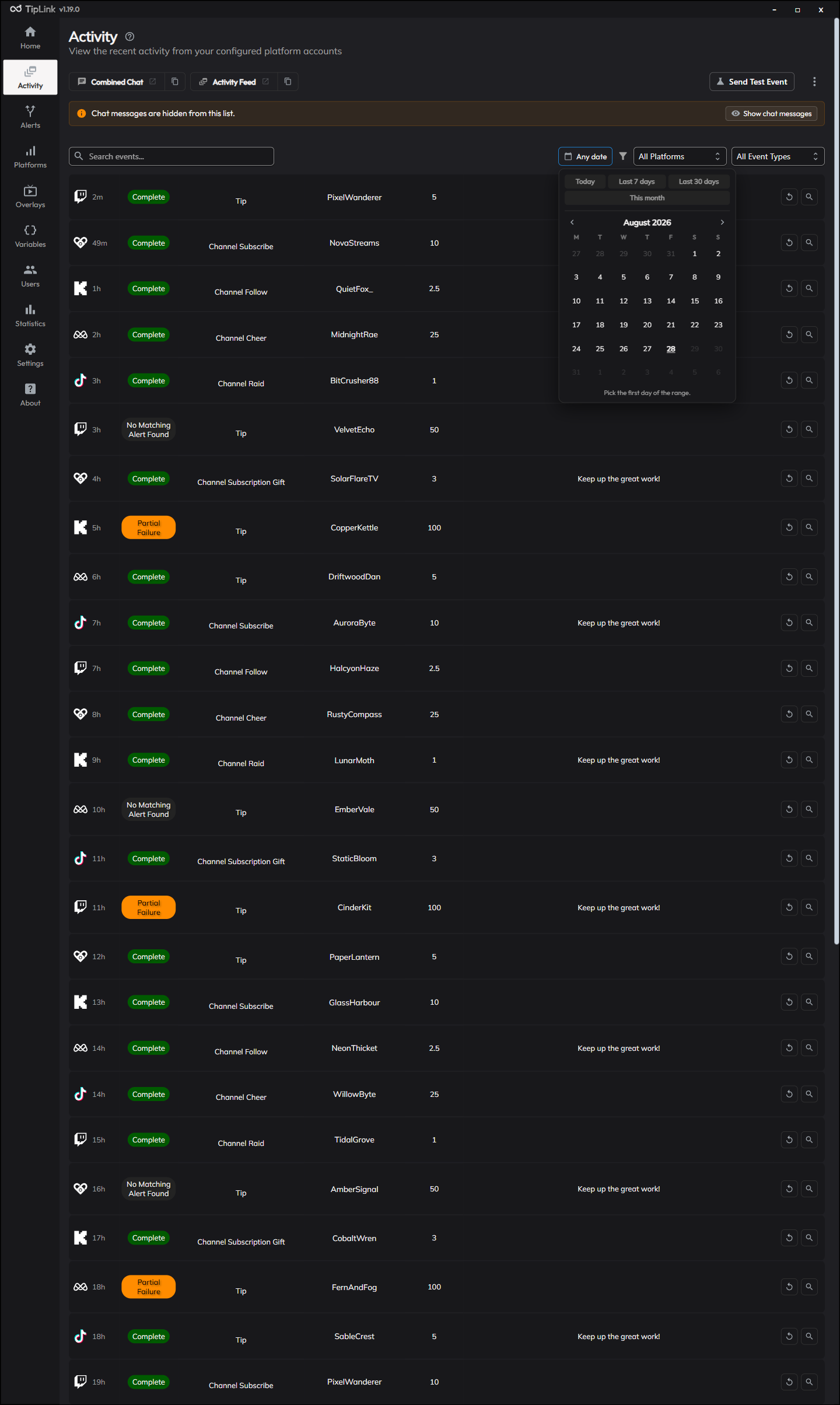
| Date | Narrow to a date range, with a calendar picker and shortcuts for Today, Last 7 days, Last 30 days and This month. |
| All Platforms | Show only events from the platforms you pick. |
| All Event Types | Show only the event types you pick, such as tips or follows. |
They all work together. Click Clear filters to reset them at once.
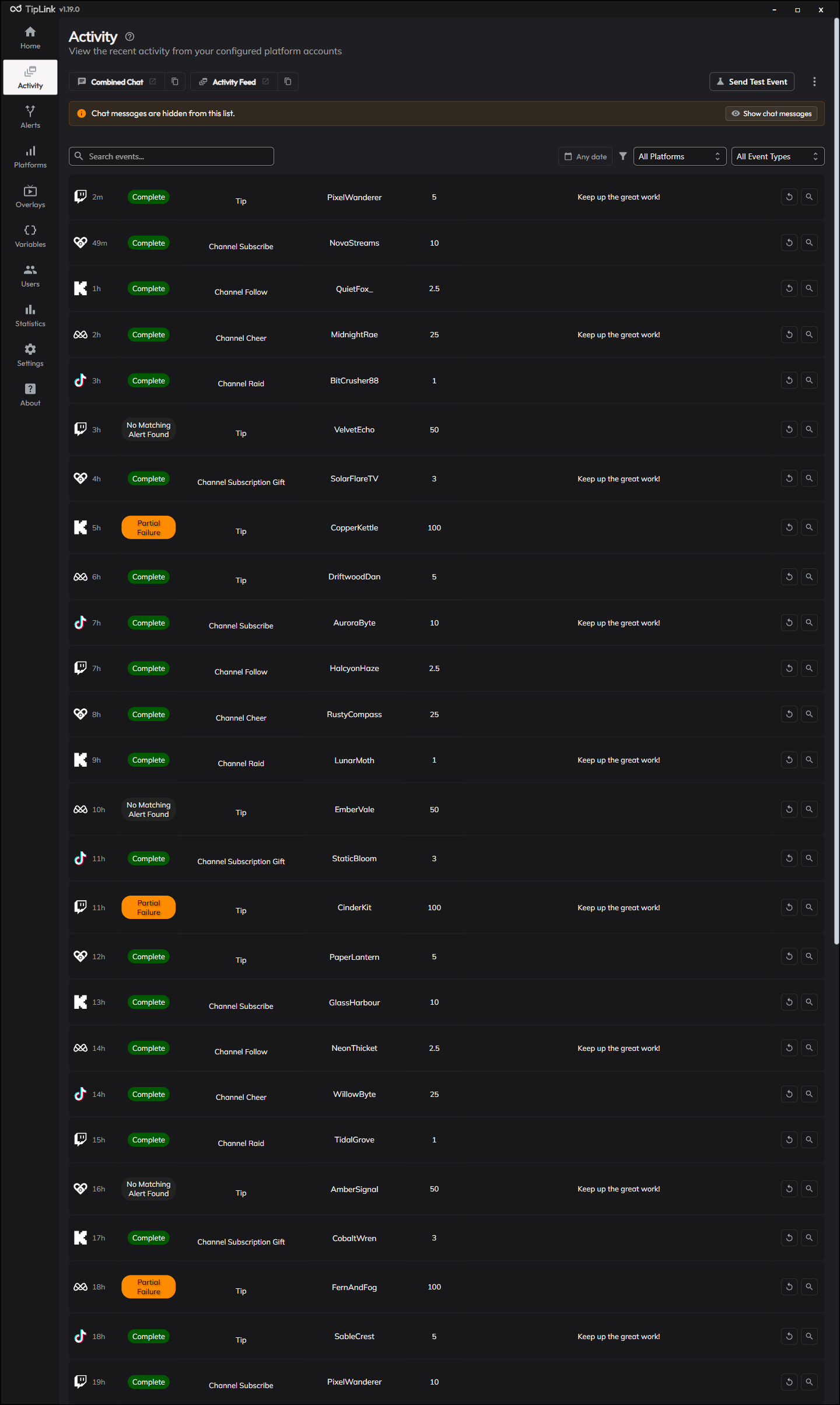
The Platform and Event Type menus show a count next to each option, worked out against your current search and other filters. If a platform shows zero, filtering by it will give you nothing.
Event times
Times show as an age, such as 30s, 2h or 1d, and keep counting up while you leave the page open. Hover any of them to see the exact date and time.
This replaced a two-line full date, and the space it freed went to the message column, which used to get cut short.
Pagination
Page controls sit at the bottom of the list, below the events, and are hidden entirely when everything fits on one page.
Why Can't I See Chat Messages?
Chat messages are hidden from the Activity page by default. The notice explaining this now carries a button that controls visibility directly, so you can switch them on without hunting through a menu.
Each platform account excludes Chat Message events by default, which means they are never saved. Open that account's settings on the Platforms page and remove Chat Message from Excluded Events if you want to keep them.
Replaying an Event
To run an event through your alerts again, click the circular arrow icon next to it.
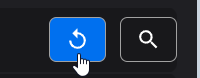
This creates a new event, marked clearly with the text Replayed.

This is the easiest way to test a change to an alert using a real event you have already received.
Cancelling an Event
If an event is still running, for example a long chain of actions or a repeating device action, click the Cancel this event button next to it. Remaining actions are skipped and the event is marked Cancelled.
To stop everything that is waiting at once, go to Settings, unlock the Danger Zone and use Skip All Pending Events. Events already running are not affected.
Viewing Event Details
Click the magnifying glass on the right of any event to see its full detail, including:
- The original event's raw information.
- The result of every individual action.
- Which alert or alerts fired.
The view starts from the event data itself rather than the wrapper that looks the same on every event, so what you actually care about is at the top.
| Control | What it does |
|---|---|
| Search | Filters the details. A match deep in the data stays reachable through its parents, so nothing gets hidden. |
| Copy | Copies the complete details to your clipboard. |
| Download JSON | Saves the complete details to a file. |
Both act on the full details, not on whatever the search happens to be showing.
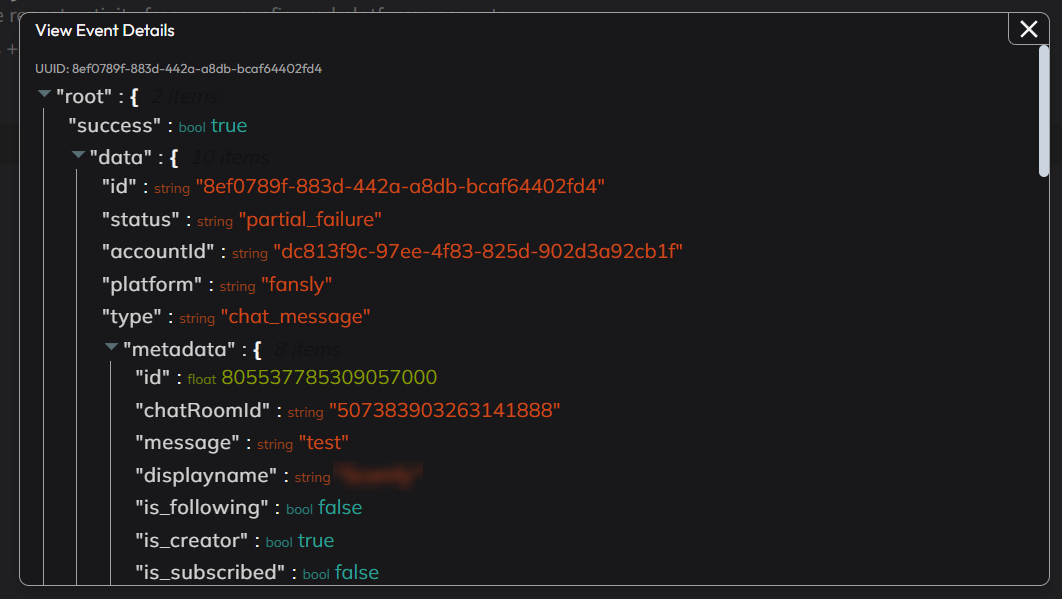
Everything listed under metadata in this view can be used as a placeholder. If you see metadata.id, you can write {{ id }} in an action. See Using Event Data in Actions.
Event Statuses
| Status | What it means |
|---|---|
| In Queue | Waiting to be processed. |
| Processing | Being processed right now. |
| Success | Every action on the matching alert worked. |
| Partial Failure | Some actions worked and some failed. |
| Complete Failure | Every action failed. |
| Error | Something unexpected happened while processing. |
| No Matching Alert Found | The event did not match any of your alerts, so nothing ran. |
| Multiple Alerts Triggered | More than one alert fired for this event. Open the details view to see how each one did. |
| Rate Limited | Blocked by a cooldown. |
| Rate Limited (Queued) | Held back by a cooldown and will run once it expires. |
| Rate Limited (Ignored) | Blocked by a cooldown and discarded. |
| Skipped | Marked as skipped, either by you or by Skip All Pending Events. |
| Cancelled | Stopped part-way through. |
| Duplicate Follow | A repeat follow from someone who has followed before, ignored so viewers cannot farm follow rewards. Turn this off with Block Repeat Follow Alerts in Settings. |
| Logged | A chat message that was recorded but not put through the alert system. |
No Matching Alert Found means the event arrived fine but no alert matched it. Use the Event Testing Tool to see exactly which condition failed.
How Much Is Stored?
The stored event and chat message counts moved to the Settings page, where they sit next to the Danger Zone controls that delete them.
Exporting Events
Open the ⋮ menu in the top right to save your history to a file:
| Option | What it saves |
|---|---|
| Export Events (JSON) | All non-chat events, in a format other software can read. |
| Export Events (CSV) | All non-chat events, ready to open in a spreadsheet. |
| Export Chat Messages (JSON) | Your stored chat messages. |
| Export Chat Messages (CSV) | Your stored chat messages, ready for a spreadsheet. |
Popout Windows
Two popouts let you keep an eye on activity while you stream:
| Popout | What it shows |
|---|---|
| Activity Feed | Events as they arrive. |
| Combined Chat | Chat from every connected platform in one place. |
Open either from the buttons above the event list, or from the ⋮ menu.
Using a popout in your streaming software
Each popout has a copy button beside it that puts its address on your clipboard. Paste that into a browser source or browser panel in OBS Studio or Meld to keep the feed on a second monitor, or dock it inside your streaming software.
These addresses are local to your PC. They are not viewable by anyone else.
Send Test Event
The Send Test Event button at the top of the page opens the testing tool, where you can build an event by hand and either check whether an alert would fire, or fire it for real.
See Event Testing Tool.