Twitch (Other Channels)
Created 31 Dec 2025·Updated 31 Jul 2026
Open Platforms in TipLinkSet-up Instructions
-
Open TipLink, and navigate to the "Platforms" page using the sidebar.
-
Click Add an Account, then choose Twitch (Other Channels).

-
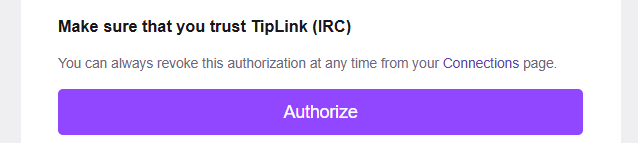
A popup will now open in your web browser. Follow the instructions on-screen to authorize your Twitch account.
-
After clicking "Authorize", please wait until you see a large tick icon, and a message indicating it's safe to close the tab.
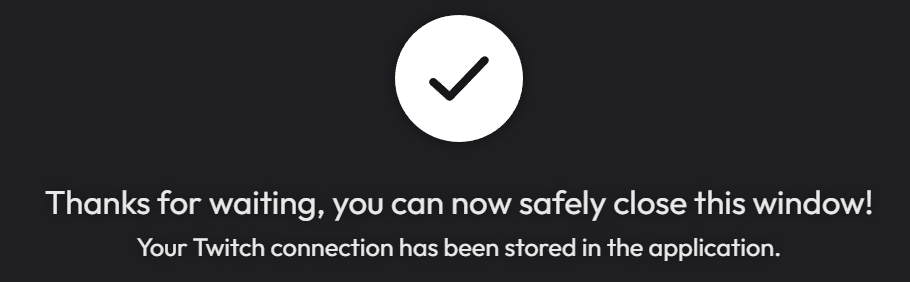
Twitch is now connected to TipLink!
Managing Your Twitch Account
Here's how to manage your account connection with Twitch within TipLink.
-
Open TipLink, and navigate to the "Platforms" page using the sidebar.
-
Find your account in the list, and click the small person icon containing a gear.
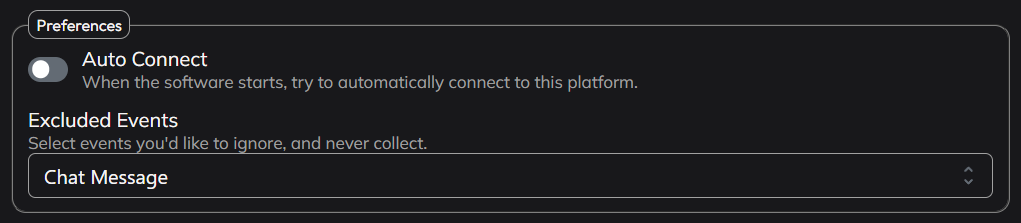
This is the configuration window for your account connection, where you can manage tools like:
- Auto Connect
Enable this to automatically connect this account when TipLink starts. - Excluded Events
If you want to ensure certain events are never recorded, select them from the dropdown list provided. Chat Messages are added to the exclusion list by default. - Delete Account
This button will completely remove your account connection with this platform.
Connection Instructions
-
Open TipLink.
-
On the Home or Platforms page, click "Connect" next to the account you'd like to connect with.
-
TipLink will now try to connect with Twitch.
-
If the connection is successful, you'll see the button text change to "Disconnect", and the button will turn red.
-
If the connection failed, the button will remain green, and the text will read "Connect".
-
Removal Instructions
To remove your connection between TipLink and Twitch, please follow the instructions below.
Warning
Disconnecting TipLink will break existing connections to Twitch, and you will have to re-connect to use TipLink with Twitch in the future.
-
Log-in to Twitch, and navigate to https://www.twitch.tv/settings/connections
-
Scroll down on the page to "Other Connections".
-
Locate the item labeled "TipLink (IRC)", then click "Disconnect" to the right.
-
Open TipLink, and navigate to the "Platforms" page using the sidebar.
-
Find your Twitch account in the list, and click the small person icon containing a gear.
-
Click "Delete Account" top-right.
-
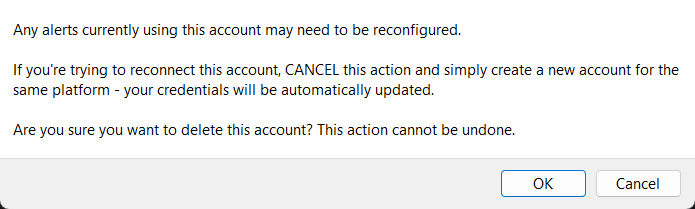
You'll then be asked to confirm if you really want to do this.