BuyMeACoffee
Created 16 Jan 2026·Updated 31 Jul 2026
Open Platforms in TipLinkBuyMeACoffee support is in beta. It works, but events may occasionally be missed and the available event types are still growing.
Set-up Instructions
-
Open TipLink, and navigate to the "Platforms" page using the sidebar.
-
Click Add an Account, then choose BuyMeACoffee.
-
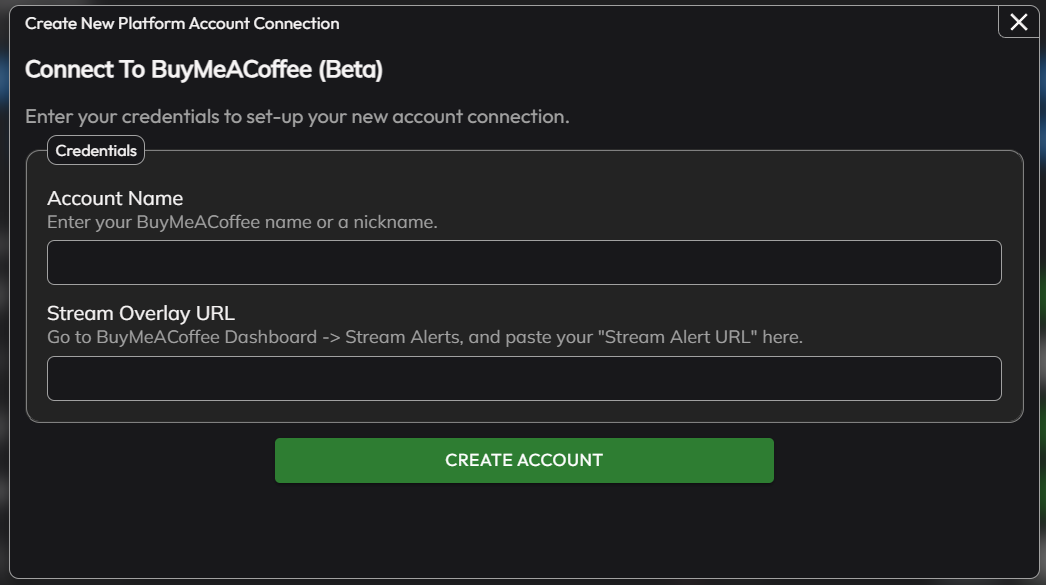
A popup will open within TipLink. Complete all of the fields provided.
-
Account Name
Your BuyMeACoffee Username. -
Stream Overlay URL
Copy this from your BuyMeACoffee Buttons & Graphics Settings under "Stream alerts" (https://studio.buymeacoffee.com/button-and-graphics), and copy your overlay URL using the button provided at the top of the page.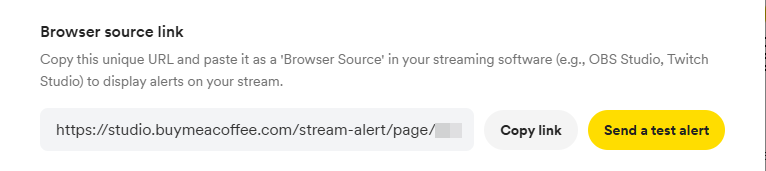
- Click "Create Account", and wait for TipLink to process the information provided.
-
If there's a problem with your details, an error message will appear.

-
If the connection is successful, the popup will close and your new account will appear in the list provided.

-
BuyMeACoffee is now connected to TipLink!
Managing Your BuyMeACoffee Account
Here's how to manage your account connection with BuyMeACoffee within TipLink.
-
Open TipLink, and navigate to the "Platforms" page using the sidebar.
-
Find your account in the list, and click the small person icon containing a gear.
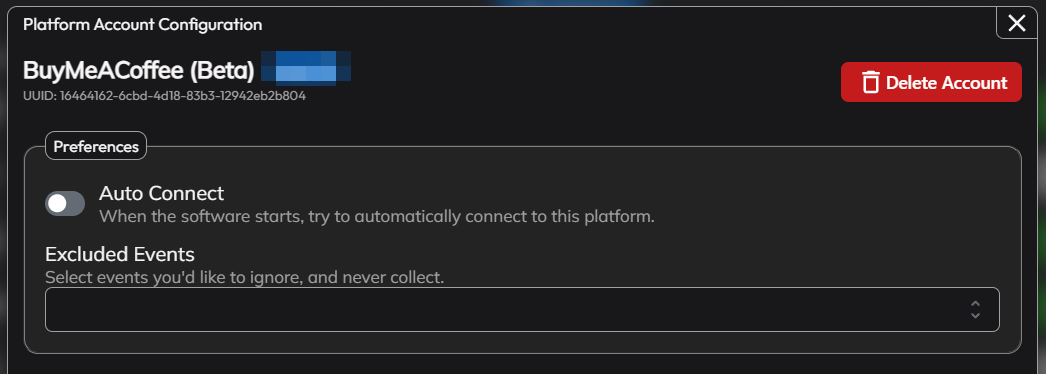
This is the configuration window for your account connection, where you can manage tools like:
- Auto Connect
Enable this to automatically connect this account when TipLink starts. - Excluded Events
If you want to ensure certain events are never recorded, select them from the dropdown list provided. - Delete Account
This button will completely remove your account connection with this platform.
Connection Instructions
-
Open TipLink.
-
On the Home or Platforms page, click "Connect" next to the account you'd like to connect with.
-
TipLink will now try to connect with BuyMeACoffee.
-
If the connection is successful, you'll see the button text change to "Disconnect", and the button will turn red.
-
If the connection failed, the button will remain green, and the text will read "Connect".
-
Removal Instructions
To remove your connection between TipLink and BuyMeACoffee, please follow the instructions below.
-
Open TipLink, and navigate to the "Platforms" page using the sidebar.
-
Find your BuyMeACoffee account in the list, and click the small person icon containing a gear.
-
Click "Delete Account" top-right.
-
You'll then be asked to confirm if you really want to do this.