Joystick.TV
Created 31 Dec 2025·Updated 11 Sept 2026
Open Platforms in TipLinkSet-up Instructions
-
Open Joystick.TV in your browser and log-in to your account.
-
Click "New Bot" in the top-right corner.
-
In the "Name" field, enter something to remember the bot by (e.g.
TipLink). -
In the "OAuth Redirect URL" field, enter
http://localhost:6969/joysticktv-callback/auth -
Enable the following checkboxes for required permissions:
- SendMessage
- ReadMessages
- ReceiveStreamEvents
- ViewUserPresence
- ManageStreamerSettings
- ViewSubscriptions
-
Click "Create Bot" in the bottom-right corner of the page.
-
Open TipLink, and navigate to the "Platforms" page using the sidebar.
-
Click Add an Account, then choose Joystick.TV.
-
A popup will open within TipLink. Complete all of the fields provided.
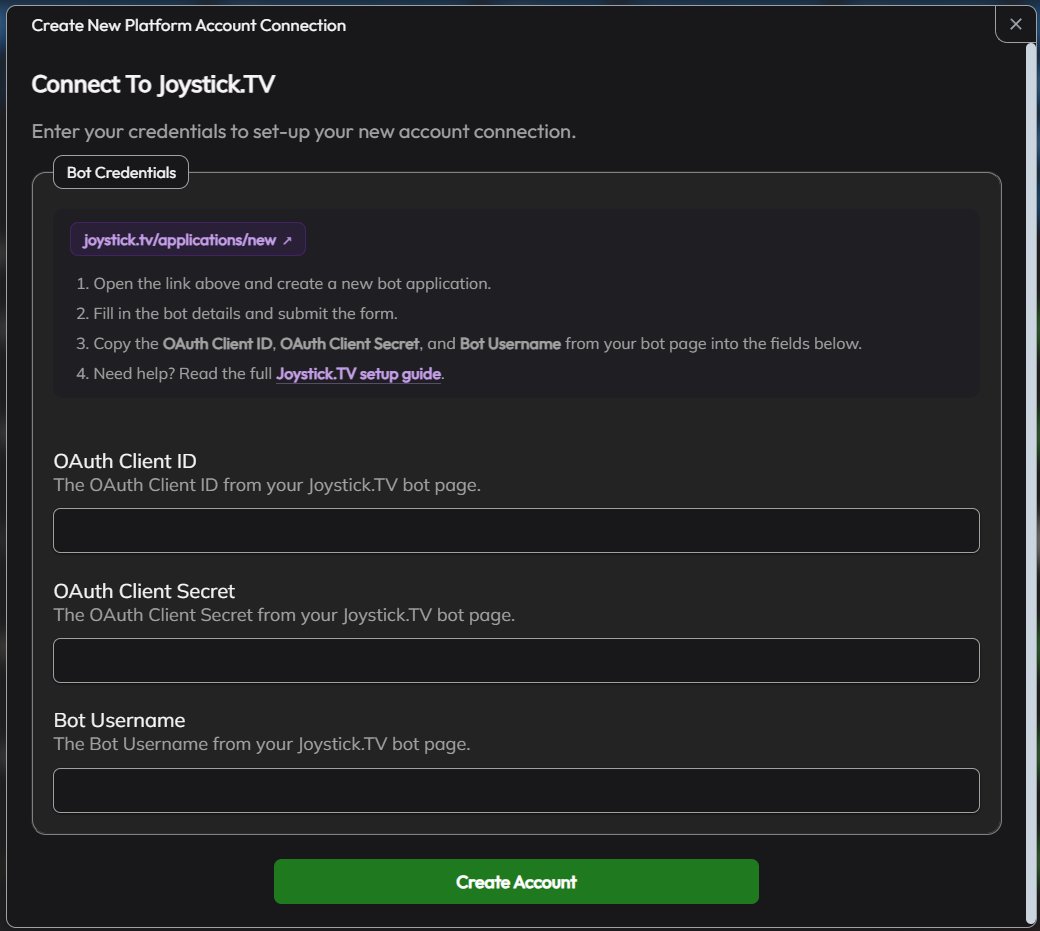
- OAuth Client ID
- OAuth Client Secret
- Bot Username
- Click "Create Account".
- TipLink will now show a waiting page.
- Open https://joystick.tv/applications and click "Created" at the top of the page to view your new bot.
- Click "Manage" → "Install", and follow the prompts on-screen to authorize your application.
- You will then be redirected to a TipLink authorization page. Once you see the success message, you're good to go!
-
If the connection is successful, your new account will appear in the list provided.

-
Joystick.TV is now connected to TipLink!
Image Reference
Bot Settings on JoyStick.TV
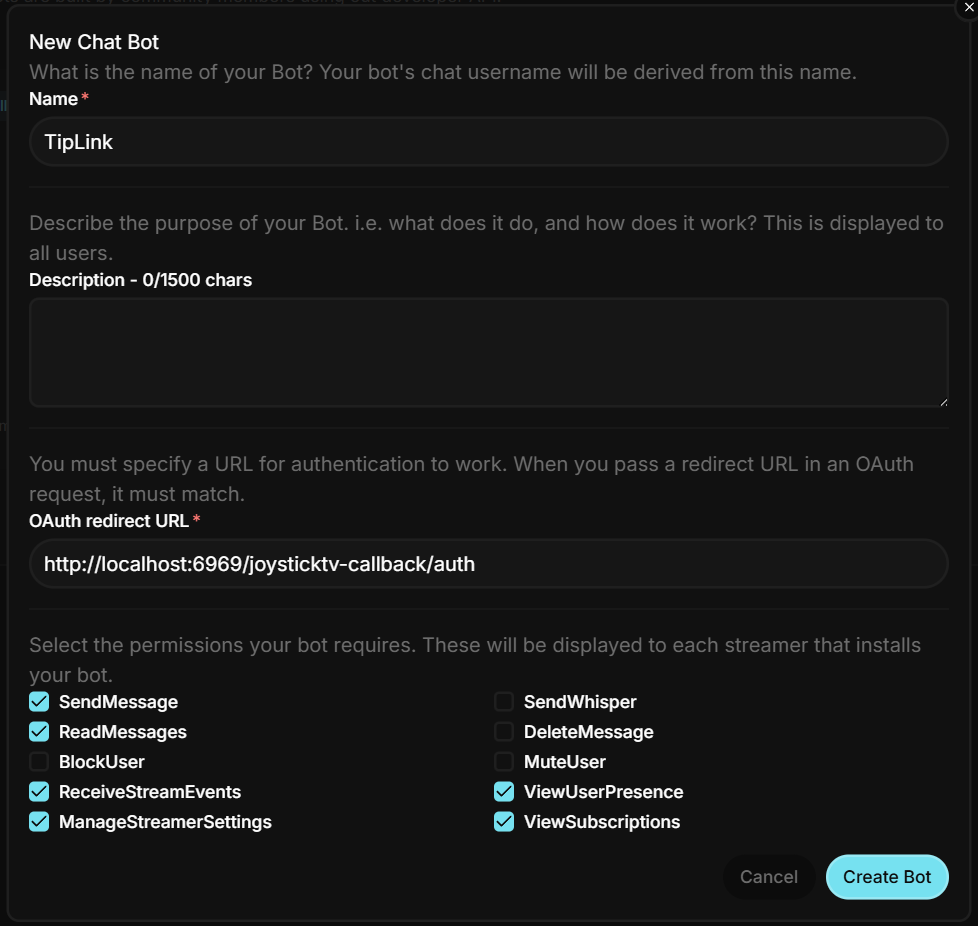
Bot Set-up Page on Joystick.TV (step 4)
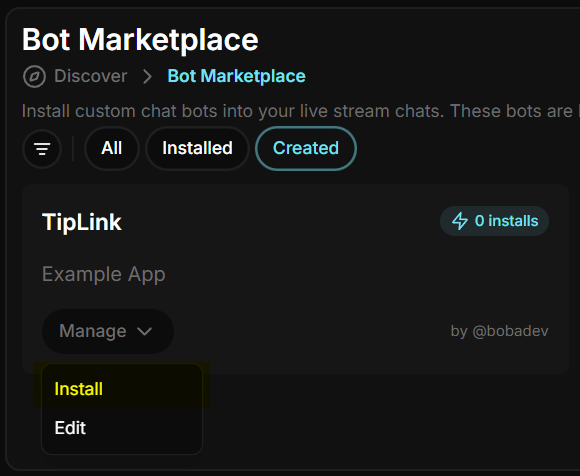
App install button on Joystick.TV (step 14)
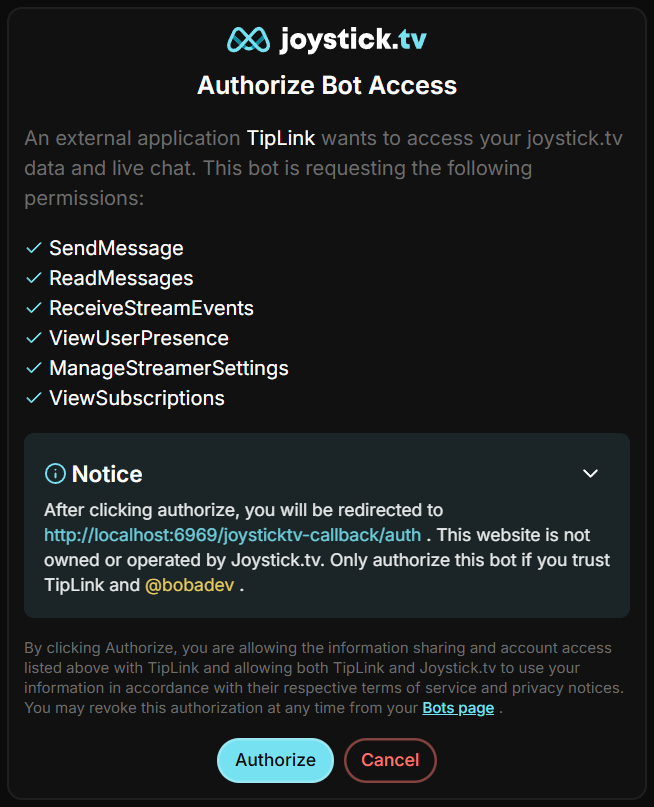
App authorization challenge (step 14)
Managing Your Joystick.TV Account
Here's how to manage your account connection with Joystick.TV within TipLink.
-
Open TipLink, and navigate to the "Platforms" page using the sidebar.
-
Find your account in the list, and click the small person icon containing a gear.
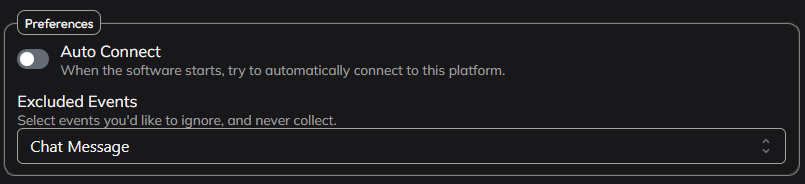
This is the configuration window for your account connection, where you can manage tools like:
- Auto Connect
Enable this to automatically connect this account when TipLink starts. - Excluded Events
If you want to ensure certain events are never recorded, select them from the dropdown list provided. - Delete Account
This button will completely remove your account connection with this platform.
Connection Instructions
-
Open TipLink.
-
On the Home or Platforms page, click "Connect" next to the account you'd like to connect with.
-
TipLink will now try to connect with Joystick.TV.
-
If the connection is successful, you'll see the button text change to "Disconnect", and the button will turn red.
-
If the connection failed, the button will remain green, and the text will read "Connect".
-
Matching a Tip Menu Item
By default a Tip trigger fires on any tip. If you run a tip menu, you can point an alert at one item on it, so three menu items can drive three different alerts.
On a Tip trigger you get:
| Setting | What it does | Default |
|---|---|---|
| Tip Menu Item Match | The name of one tip menu item. Leave empty to match any tip. | Blank |
| Ignore Case | Treat differing capitalisation as the same. | On |
| Match Contains | The name only has to appear in the tip, rather than match it exactly. | On |
| Do you want to match the Tip Menu Item using Regex? | Match with a regular expression instead. Hides the two options above. | Off |
The Tip Menu Item Locked and Tip Menu Item Unlocked triggers gain the same fields, named Item Name Match. Those two had no conditions at all before v1.20.0.
The tip amount conditions still apply, so you can require both a specific menu item and a minimum value.
Joystick.TV documents the shape of its events but not the contents of any single one, so TipLink looks for the item name in several places and then falls back to the tip's message text. Matching runs against both, which means an item whose name appears only in the message is still caught. If an item is not matching as you expect, turn on Match Contains and use a distinctive word from the item's name.
Removal Instructions
To remove your connection between TipLink and Joystick.TV, please follow the instructions below.
-
Open TipLink, and navigate to the "Platforms" page using the sidebar.
-
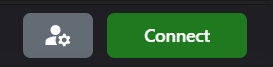
Find your Joystick.TV account in the list, and click the small person icon containing a gear.
-
Click "Delete Account" top-right.
-
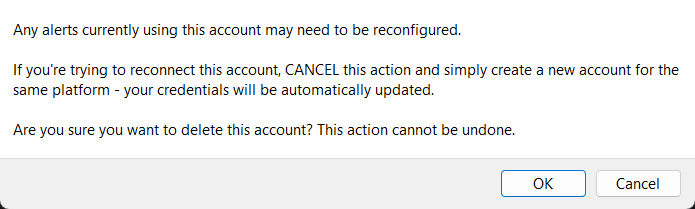
You'll then be asked to confirm if you really want to do this.