OpenShock
Created 31 Dec 2025·Updated 11 Sept 2026
Open Platforms in TipLinkSet-up Instructions
-
Open TipLink, and navigate to the "Platforms" page using the sidebar.
-
Click Add an Account, then choose OpenShock.
-
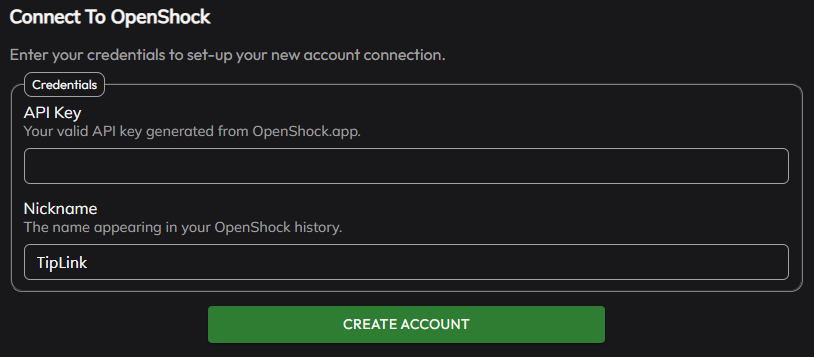
A popup will open within TipLink.
Enter the API Key for your OpenShock account, and a memorable nickname to appear in your OpenShock history window.
You can generate a new API key from your "API Tokens" page - https://openshock.app/#/dashboard/tokens
Make sure the API Key you use with TipLink has "No expiry" enabled, so it won't unexpectedly expire.
- Click "Create Account", and wait for TipLink to process the information provided.
-
If the connection is successful, your new account will appear in the list provided.

-
OpenShock is now connected to TipLink!
Self-Hosting OpenShock
If you run your own OpenShock server rather than using the official service, fill in Server Address (optional) on the Add Account form.
| Setting | What it does | Default |
|---|---|---|
| Server Address (optional) | The address of your own OpenShock API, for example https://openshock.example.com/api or http://localhost:5001. Leave blank to use the official OpenShock service. | Blank |
You can also set or change it afterwards, from OpenShock Preferences in the account's configuration window.
Leave the field blank and nothing changes: TipLink keeps using the official service exactly as before.
TipLink refuses an address it cannot use rather than accepting it and failing later. Point it at the API endpoint, which usually ends in /api.
Managing Your OpenShock Account
Here's how to manage your account connection with OpenShock within TipLink.
-
Open TipLink, and navigate to the "Platforms" page using the sidebar.
-
Find your account in the list, and click the small person icon containing a gear.

This is the configuration window for your account connection, where you can manage tools like:

- Manage Devices
Automatically re-import your OpenShock devices, and delete them if necessary. - Delete Account
This button will completely remove your account connection with this platform.
Removal Instructions
To remove your connection between TipLink and OpenShock, please follow the instructions below.
-
Open TipLink, and navigate to the "Platforms" page using the sidebar.
-
Find your OpenShock account in the list, and click the small person icon containing a gear.
-
Click "Delete Account" top-right.
-
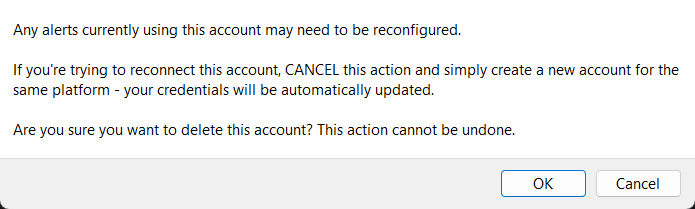
You'll then be asked to confirm if you really want to do this.