PiShock
Created 31 Dec 2025·Updated 31 Jul 2026
Open Platforms in TipLinkSet-up Instructions
-
Open TipLink, and navigate to the "Platforms" page using the sidebar.
-
Click Add an Account, then choose PiShock.
-
A popup will open within TipLink. Complete all of the fields provided.
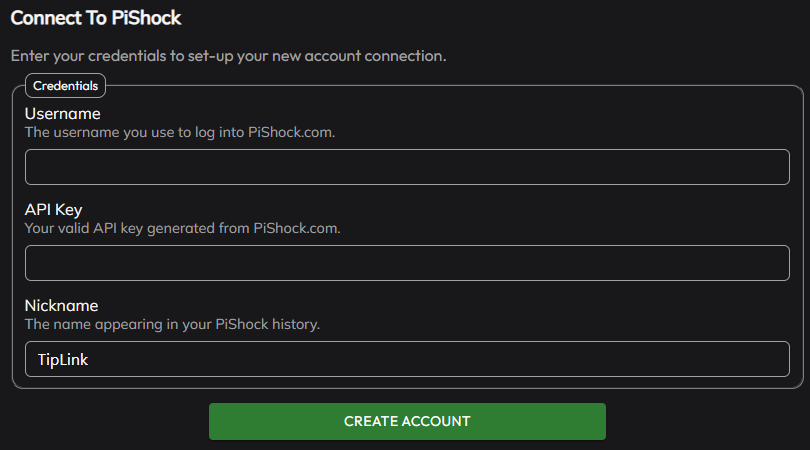
- Username
The username you use to log-in to your PiShock account (case-sensitive). - API Key
Your PiShock API key. - Nickname
A memorable name to appear in your PiShock history window.
- Click "Create Account", and wait for TipLink to process the information provided.
-
If the connection is successful, your new account will appear in the list provided.

-
PiShock is now connected to TipLink!
Managing Your PiShock Account
Here's how to manage your account connection with PiShock within TipLink.
-
Open TipLink, and navigate to the "Platforms" page using the sidebar.
-
Find your account in the list, and click the small person icon containing a gear.

This is the configuration window for your account connection, where you can manage tools like:

-
Manage Devices
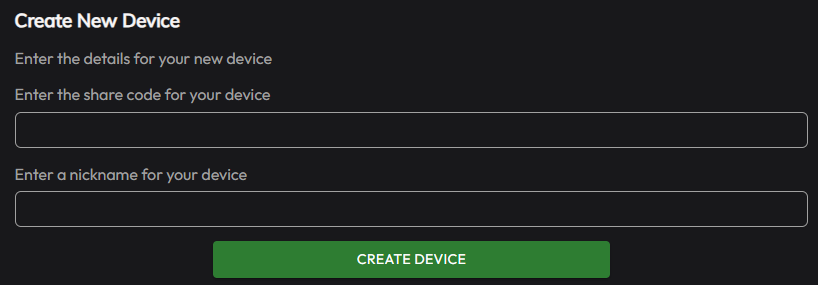
Automatically re-import your PiShock share codes and devices, or manually add new ones.When adding a new device, you need the share code, and a nickname to remember it by (e.g. "Left Leg").
-
Delete Account
This button will completely remove your account connection with this platform.
Removal Instructions
To remove your connection between TipLink and PiShock, please follow the instructions below.
-
Open TipLink, and navigate to the "Platforms" page using the sidebar.
-
Find your PiShock account in the list, and click the small person icon containing a gear.

-
Click "Delete Account" top-right.
-
You'll then be asked to confirm if you really want to do this.