Throne
If you're trying to reconnect an existing account connection, simply follow the "Set-up Instructions" section. You do not need to remove the account first.
Open Platforms in TipLink Don't have TipLink yet? Download it here.
Set-up Instructions
-
Open TipLink, and navigate to the "Platforms" page using the sidebar.
-
Click "Throne" at the top of the page.

-
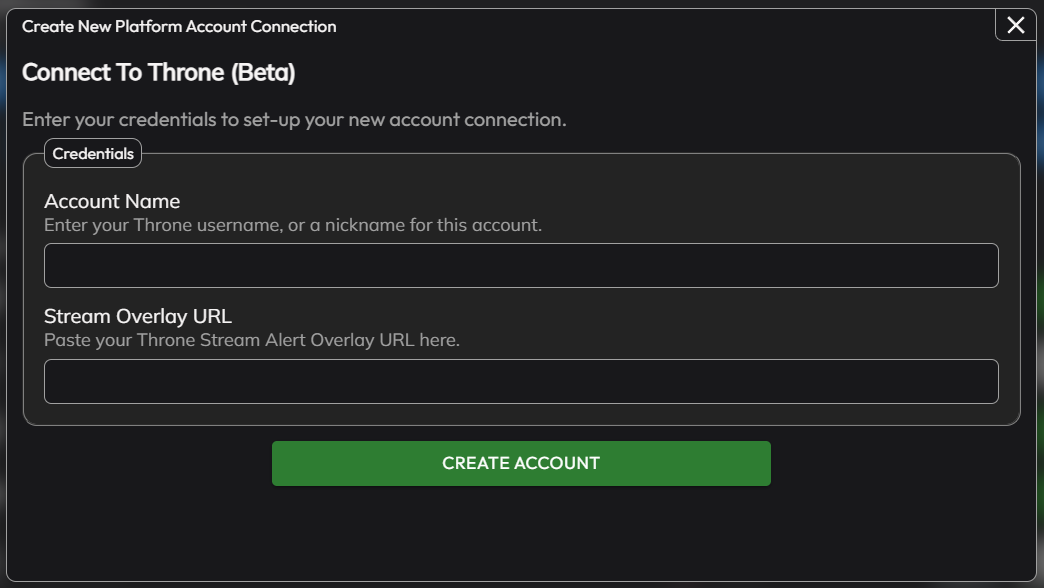
A popup will open within TipLink. Complete all of the fields provided.
-
Account Name
Your Throne Username. -
Stream Overlay URL
Copy this from your Throne Integration Settings under "Browser Source Alerts" (https://throne.com/profile/integrations/browsersource), and copy your overlay URL using the button provided at the top of the page.
- Click "Create Account", and wait for TipLink to process the information provided.
-
If there's a problem with your details, an error message will appear.
.png)
-
If the connection is successful, the popup will close and your new account will appear in the list provided.

-
Throne is now connected to TipLink!
Managing Your Throne Account
Here's how to manage your account connection with Throne within TipLink.
-
Open TipLink, and navigate to the "Platforms" page using the sidebar.
-
Find your account in the list, and click the small person icon containing a gear.
.png)
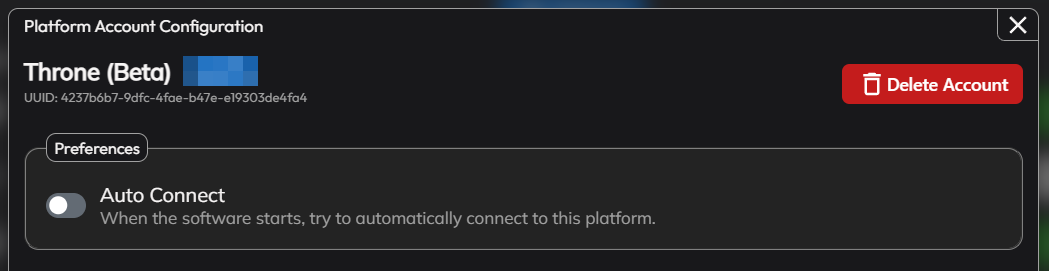
This is the configuration window for your account connection, where you can manage tools like:
- Auto Connect
Enable this to automatically connect this account when TipLink starts. - Delete Account
This button will completely remove your account connection with this platform.
Connection Instructions
-
Open TipLink.
-
On the Home or Platforms page, click "Connect" next to the account you'd like to connect with.
.png)
-
TipLink will now try to connect with Throne.
-
If the connection is successful, you'll see the button text change to "Disconnect", and the button will turn red.
.png)
-
If the connection failed, the button will remain green, and the text will read "Connect".
-
Removal Instructions
To remove your connection between TipLink and Throne, please follow the instructions below.
-
Open TipLink, and navigate to the "Platforms" page using the sidebar.
-
Find your Throne account in the list, and click the small person icon containing a gear.
.png)
-
Click "Delete Account" top-right.
.png)
-
You'll then be asked to confirm if you really want to do this.
.png)