Joystick.TV
If you're trying to reconnect an existing account connection, simply follow the "Set-up Instructions" section. You do not need to remove the account first.
Set-up Instructions
-
Open Joystick.TV in your browser and log-in to your account.
-
In the "Name" field, enter something to remember the bot by (e.g.
TipLink). -
In the "OAuth Redirect URL" field, enter
http://localhost:6969/joysticktv-callback/auth -
Enable the following permissions:
- SendMessage
- ReadMessages
- ReceiveStreamEvents
- ViewUserPresence
- ManageStreamerSettings
- ViewSubscriptions
-
Click "Submit Bot" in the bottom-right corner of the page.
-
Open TipLink, and navigate to the "Platforms" page using the sidebar.
-
Click "Joystick.TV" at the top of the page.
.png)
-
A popup will open within TipLink. Complete all of the fields provided.
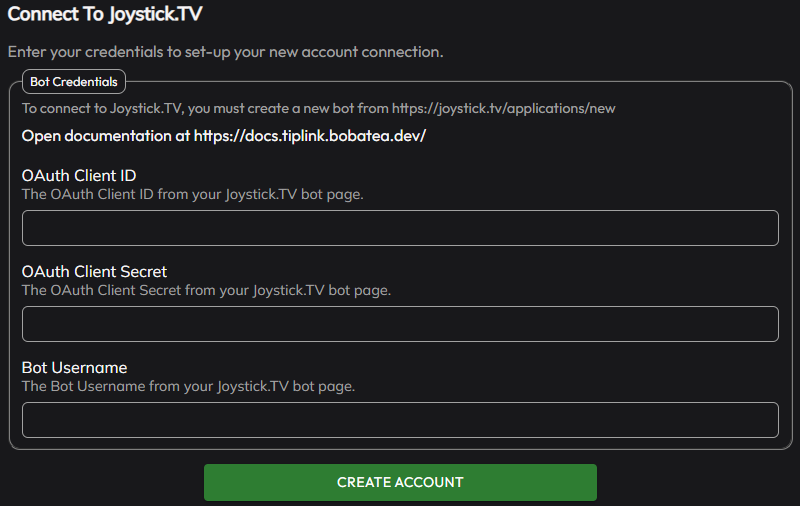
- OAuth Client ID
- OAuth Client Secret
- Bot Username
-
Click "Create Account", and wait for TipLink to process the information provided.
-
If the connection is successful, your new account will appear in the list provided.
.png)
-
Joystick.TV is now connected to TipLink!
Image Reference
Bot Settings on JoyStick.TV
.png)
Bot Set-up Page on Joystick.TV (before creation - step 2)
.png)
Bot Settings Page on Joystick.TV (after creation - step 9)
Managing Your Joystick.TV Account
Here's how to manage your account connection with Joystick.TV within TipLink.
-
Open TipLink, and navigate to the "Platforms" page using the sidebar.
-
Find your account in the list, and click the small person icon containing a gear.
.png)
This is the configuration window for your account connection, where you can manage tools like:
- Auto Connect
Enable this to automatically connect this account when TipLink starts. - Excluded Events
If you want to ensure certain events are never recorded, select them from the dropdown list provided. - Delete Account
This button will completely remove your account connection with this platform.
.png)
Connection Instructions
-
Open TipLink.
-
On the Home or Platforms page, click "Connect" next to the account you'd like to connect with.
.png)
-
TipLink will now try to connect with Joystick.TV.
-
If the connection is successful, you'll see the button text change to "Disconnect", and the button will turn red.
.png)
-
If the connection failed, the button will remain green, and the text will read "Connect".
-
Removal Instructions
To remove your connection between TipLink and Joystick.TV, please follow the instructions below.
-
Open TipLink, and navigate to the "Platforms" page using the sidebar.
-
Find your Joystick.TV account in the list, and click the small person icon containing a gear.
.png)
-
Click "Delete Account" top-right.
.png)
-
You'll then be asked to confirm if you really want to do this.
.png)